Editing a photo with words works best when the instruction changes one thing and names what must stay. This page shows that pattern in four real before-and-after examples with the exact prompts, is candid about the one that came out too dark, and gives you templates to adapt.
AI photo editing prompts at a glance
| Question | Short answer |
|---|---|
| The pattern | One change, then Keep [what must stay] the same |
| Best for | Adding an object, changing season or time of day, swapping clothing |
| Watch out for | Drift: faces, small details and colours can move when the whole image is regenerated |
| Cost on Lovino | Studio edit models from 1 credit; the Magic Edit tool 3 credits (paid credits) |
The pattern
Every prompt below has two sentences. The first asks for one change. The second is a protection clause, such as "Keep everything else the same" or "Keep the path, bench and framing the same". Skipping the second sentence invites the model to redraw parts you liked. Naming the specific things to keep, as in "Keep the street and framing the same", gives it a checklist.
How specific should the keep clause be?
The four examples use two styles of protection. "Keep everything else the same" is broad and is enough for a small addition such as a bandana or a plant. "Keep the path, bench and framing the same" names the parts that define the scene, and it suits bigger changes such as a season or a time of day, where the model has more licence to redraw. When a result moves something you cared about, name that thing in the keep clause and run it again.
Add something
The first example adds a bandana. It was made with FLUX Kontext Fast, like the others on this page.
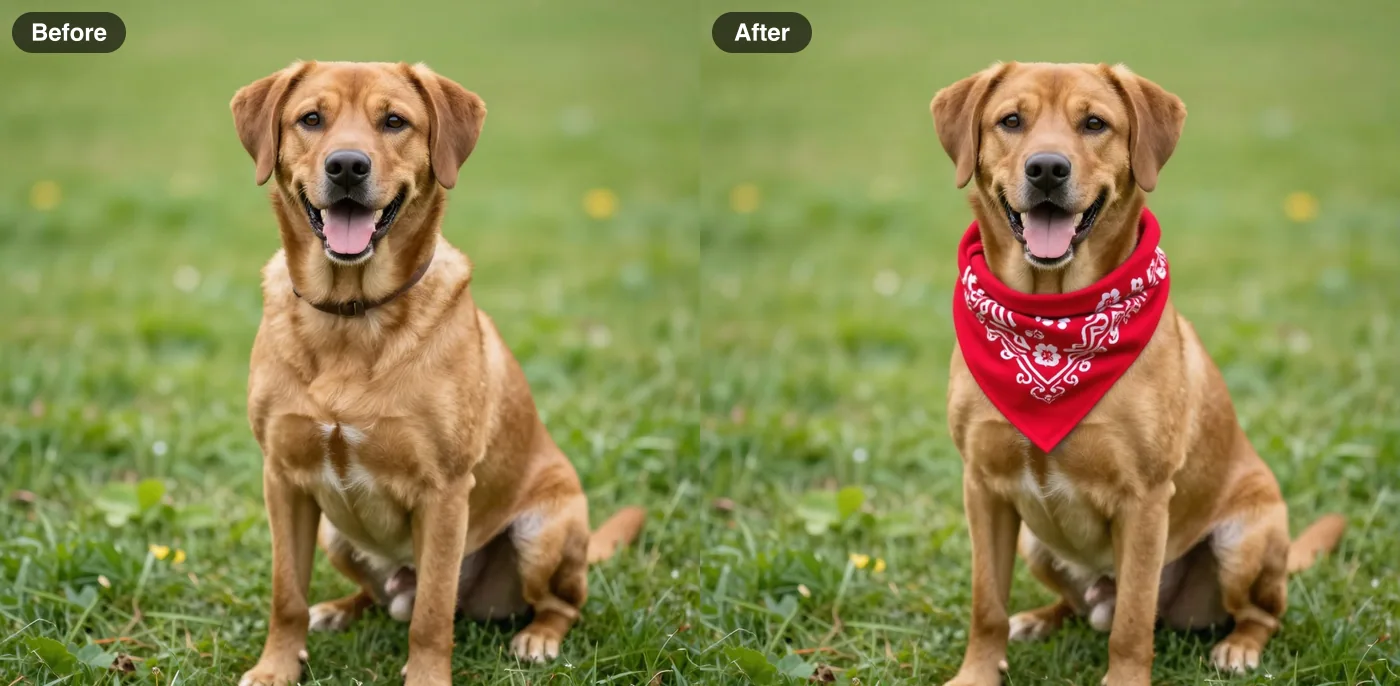
Prompt: Put a small red bandana around the dog's neck. Keep everything else the same.
The bandana landed on the dog as asked and the rest looks unchanged at a glance. The second example adds two objects at once.
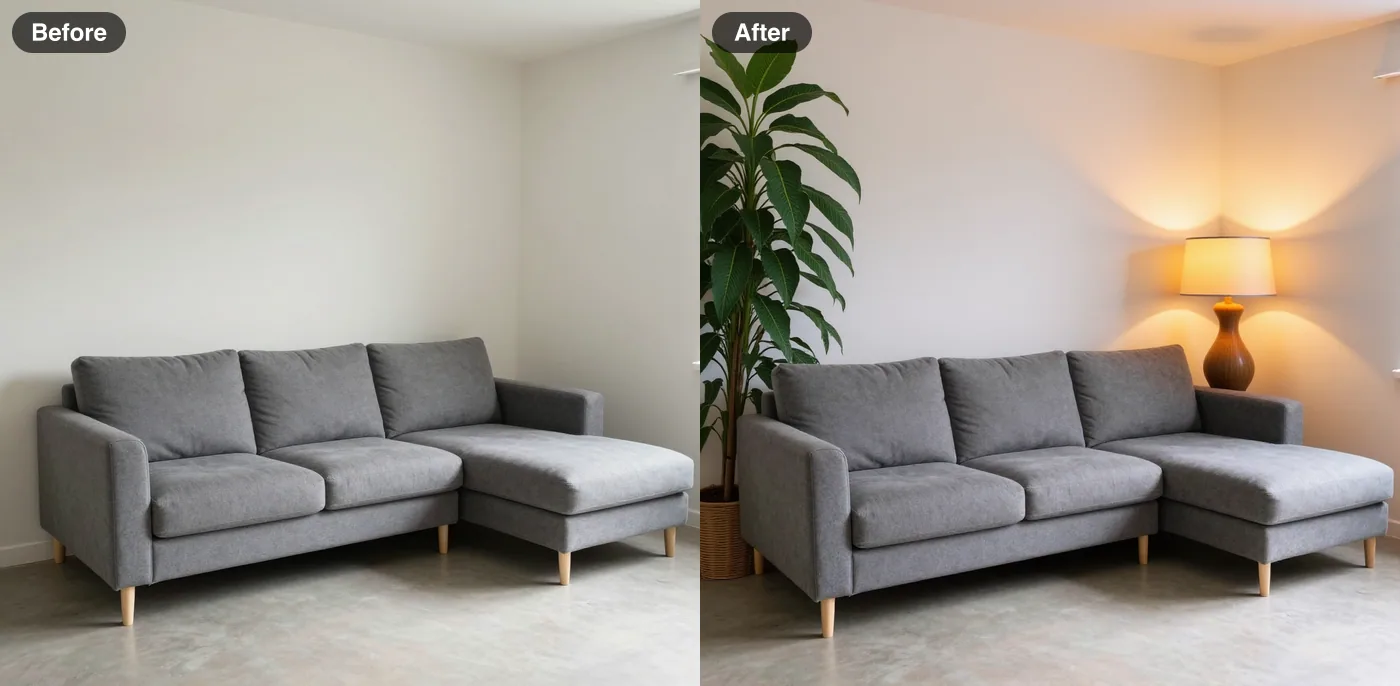
Prompt: Add a large leafy plant in the empty corner and a warm floor lamp that is switched on. Keep everything else the same.
Both the plant and the lit lamp appear, and the sofa and walls are kept. This is a quick way to test a room's mood before you buy anything.
Change the season or the light
The third example turns a summer park into winter.
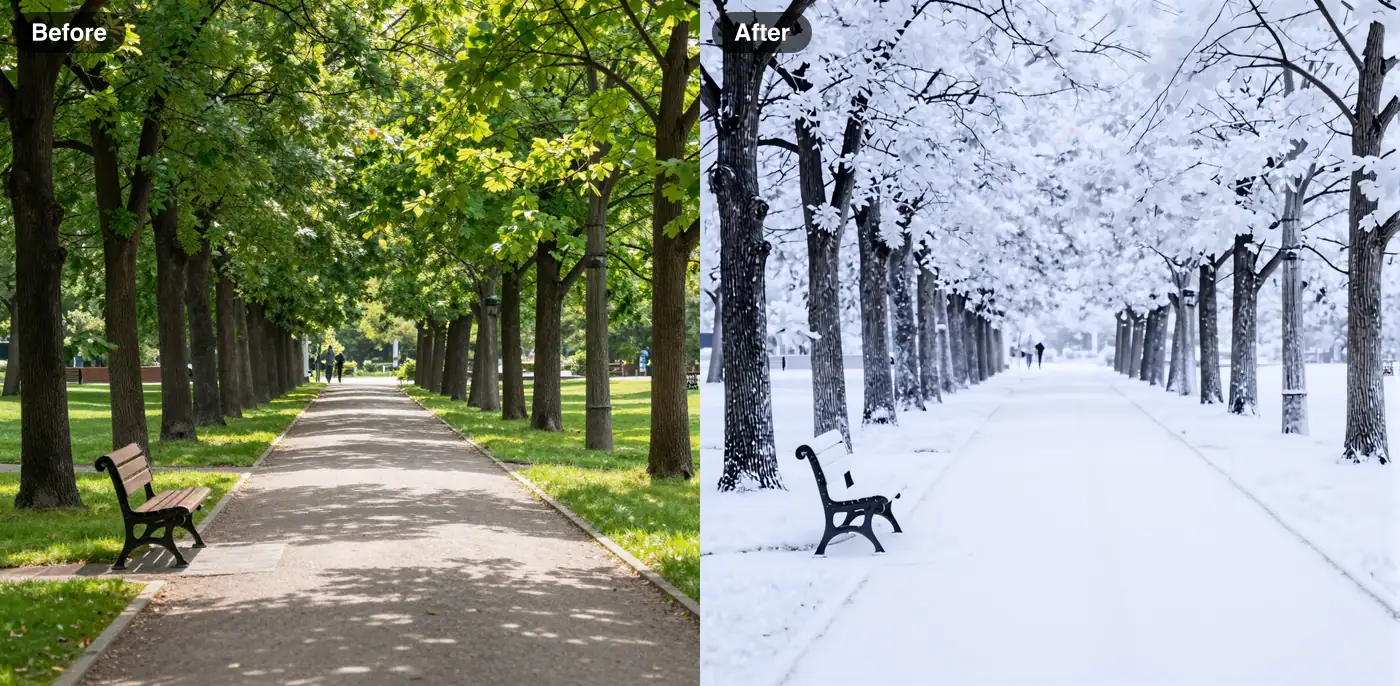
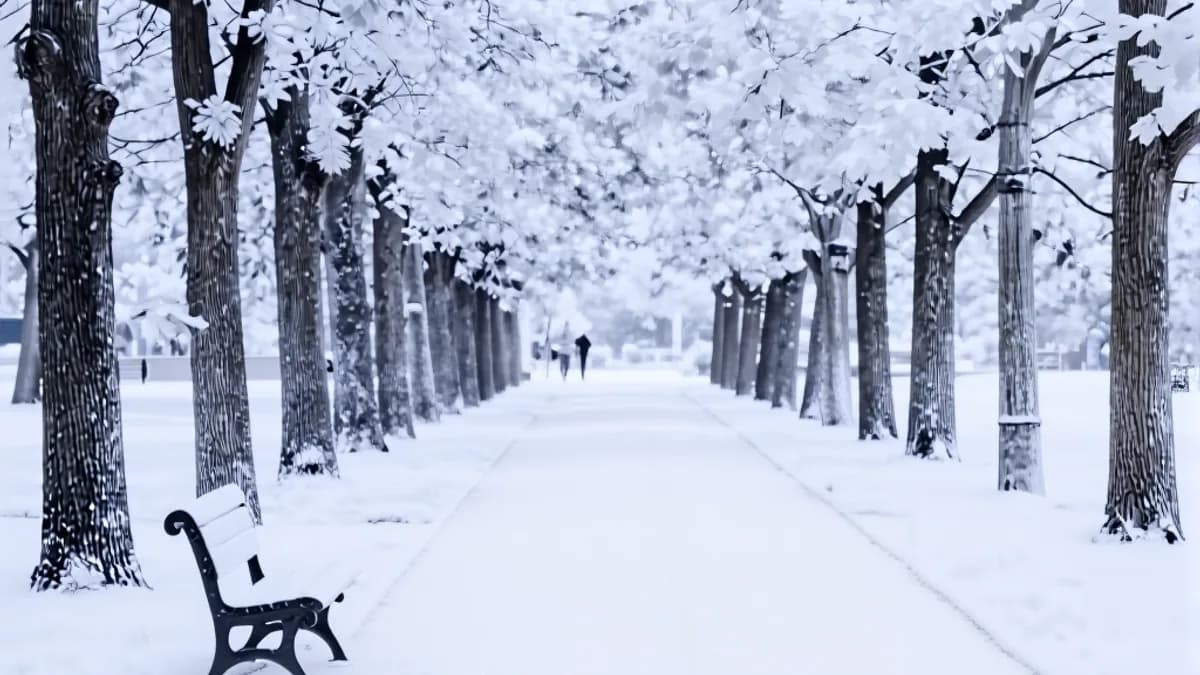
Prompt: Make it a snowy winter day with snow on the ground and trees. Keep the path, bench and framing the same.
The bench, the path and the framing survive and the trees are covered in snow. The fourth example is the honest failure.
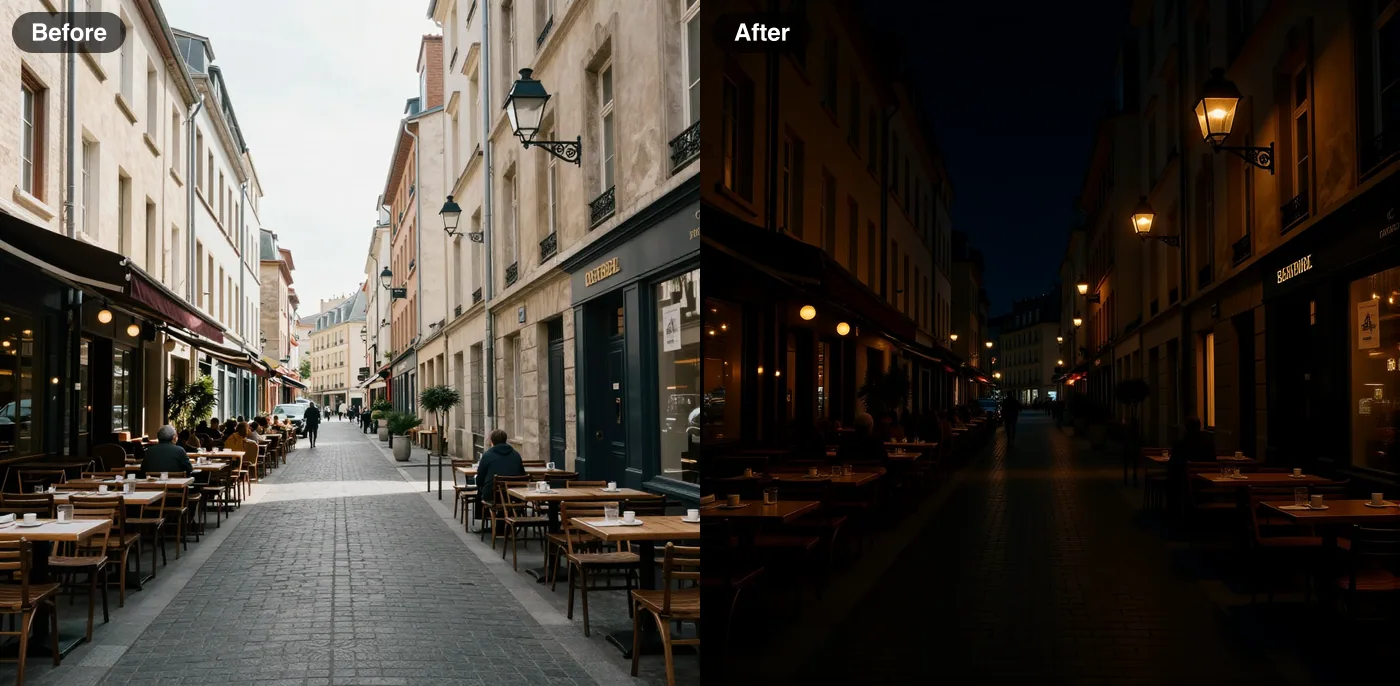
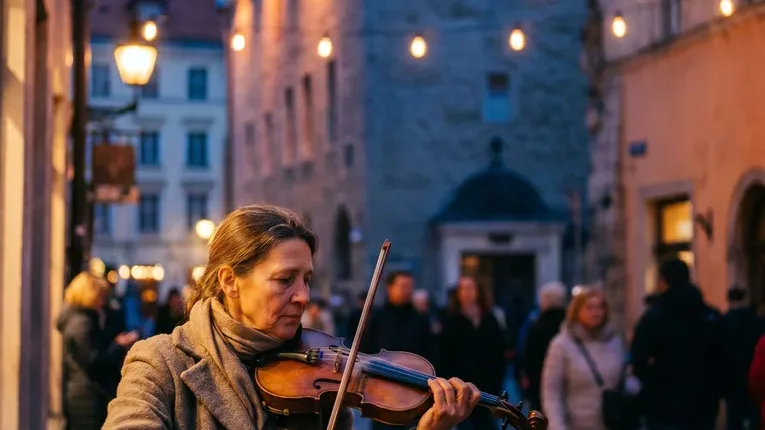
Prompt: Turn this into night time with glowing street lamps and lit cafe windows. Keep the street and framing the same.
The lamps and windows do glow, but the street went almost black, which is darker than a night photo you would post. Prompts do not guarantee the brightness you imagine. Asking for a softer time of day such as dusk is the obvious thing to try next, though we have not tested it.
Wording tips from the examples
- Name concrete things and places. The prompts say bandana, neck, empty corner, floor lamp and path, not "improve" or "fix".
- State the condition. The room prompt asks for a lamp "that is switched on", and the lamp is lit in the result.
- Name what stays. The strongest protection clauses list the parts that define the scene.
- Adjust the keep clause first. When a result is close but something moved, make the protection more specific before you change the request itself.
Edit, regenerate or restyle?
| You want | Use | Example |
|---|---|---|
| One thing changed, the rest kept | An instruction edit | The four examples above |
| Something gone | Brush or instruction removal | Remove objects from photos |
| A different look for the whole picture | Restyle | Ghibli-style prompts |
| A different mood across a set | A look clause | Instagram photo prompts |
| A new picture from scratch | Text to image | GPT Image 2 prompts |
Editing a batch of photos
Test on the hardest photo first, the one with the busiest background or the most detail. Fix the prompt until that one passes, save it, then run the rest and check each result against its original. A prompt that works on a simple photo can still drift on a complicated one, so the hard case tells you the most.
Templates to adapt
These are patterns, not tested prompts.
Add
- Add a [object] to the [place]. Keep everything else the same.
- Put a [item] on the [subject]. Keep the [pose or layout] the same.
Change
- Make it a [season] day with [details]. Keep the [layout] and framing the same.
- Turn this into [time of day] with [light sources]. Keep the [layout] the same.
- Change the [colour] [item] to [colour]. Keep everything else exactly the same.
Replace or remove
- Replace the background with [description]. Keep [subject] exactly the same.
- Remove the object]. Keep everything else the same. There is more on this in [our object removal guide.
How to compare before and after
Open both images at the same zoom and check the same five places every time: the corners, the edges of the changed object, a patch of texture such as grass or fabric, any small printed text, and every face. Drift hides in those spots. Keep the original file, because the best edit is sometimes the one you decline to use.
Where edits go wrong
- Drift. Faces, small text and colours can move even when told to stay. In our product photo examples the laces changed colour.
- Too much at once. Stacking three changes in one prompt gives the model three chances to move something you wanted kept.
- Over-dark or over-bright results. The night example is one. Re-run with a softer request.
- People. Only edit photos of yourself or people who agreed, and check faces at 100%. For a worked example see AI photo prompts for LinkedIn.
What it costs
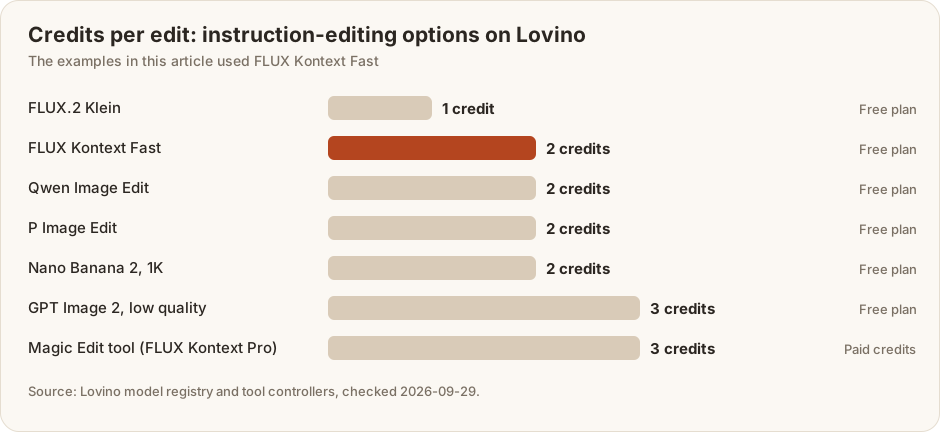
The Magic Edit tool (the AI image editor) costs 3 credits per edit and needs paid credits. The Studio route is cheaper: pick an edit model and send your photo with the instruction. FLUX Kontext Fast costs 2 credits, and the free plan's 3 daily credits (signup required) cover it. Free-plan downloads are watermarked. Paid plans start at $9.99 a month.
Keep going
If you like editing with words, read our Nano Banana editing guide and how to use image-to-image AI. To change the whole look of a photo, see Ghibli-style prompts and six more art styles.