

AI Infographic Generator
Lovino's AI infographic generator lays out a title and a short list of steps as a vertical infographic with icons and lettering, using GPT Image 2. It suits how-to guides, plans and posts. Low quality costs 3 credits, and the 3 free daily credits cover it. Proofread the text before you share.
GPT Image 2 · low 3, medium 5, high 7 credits · medium and high need a paid plan
What is AI Infographic Generator?
Type a title and the steps you want, and Lovino lays them out as a vertical infographic with icons, using GPT Image 2 in Studio. Low quality costs 3 credits and the free daily credits cover it. Medium (5) and high (7) need a paid plan. Proofread the text before you share it.
How to use AI Infographic Generator


- 01
Describe the title and the steps
Write the title and each step, with the exact words in quotes, for example "1 Heat the water". Name the colours and ask for no logos.
- 02
Pick GPT Image 2
Choose GPT Image 2, a model that renders text, and a tall 2:3 shape. Low quality is 3 credits, medium is 5 credits and high is 7 credits.
- 03
Generate in Studio
Studio lays out the title, the numbered steps and simple icons in one picture.
- 04
Get the infographic
Download the picture when it is ready. Run it again if the layout is not right.
- 05
Proofread the text
Check every word and number against your notes before you share. Fix a mistake by running it again with the correction in the prompt.
Infographics made with GPT Image 2
Each infographic was made in Studio with GPT Image 2 from the exact prompt shown, and the text was checked by eye. They are AI-made pictures, so proofread your own results the same way.
 GPT Image 2
3 to 7 credits by quality
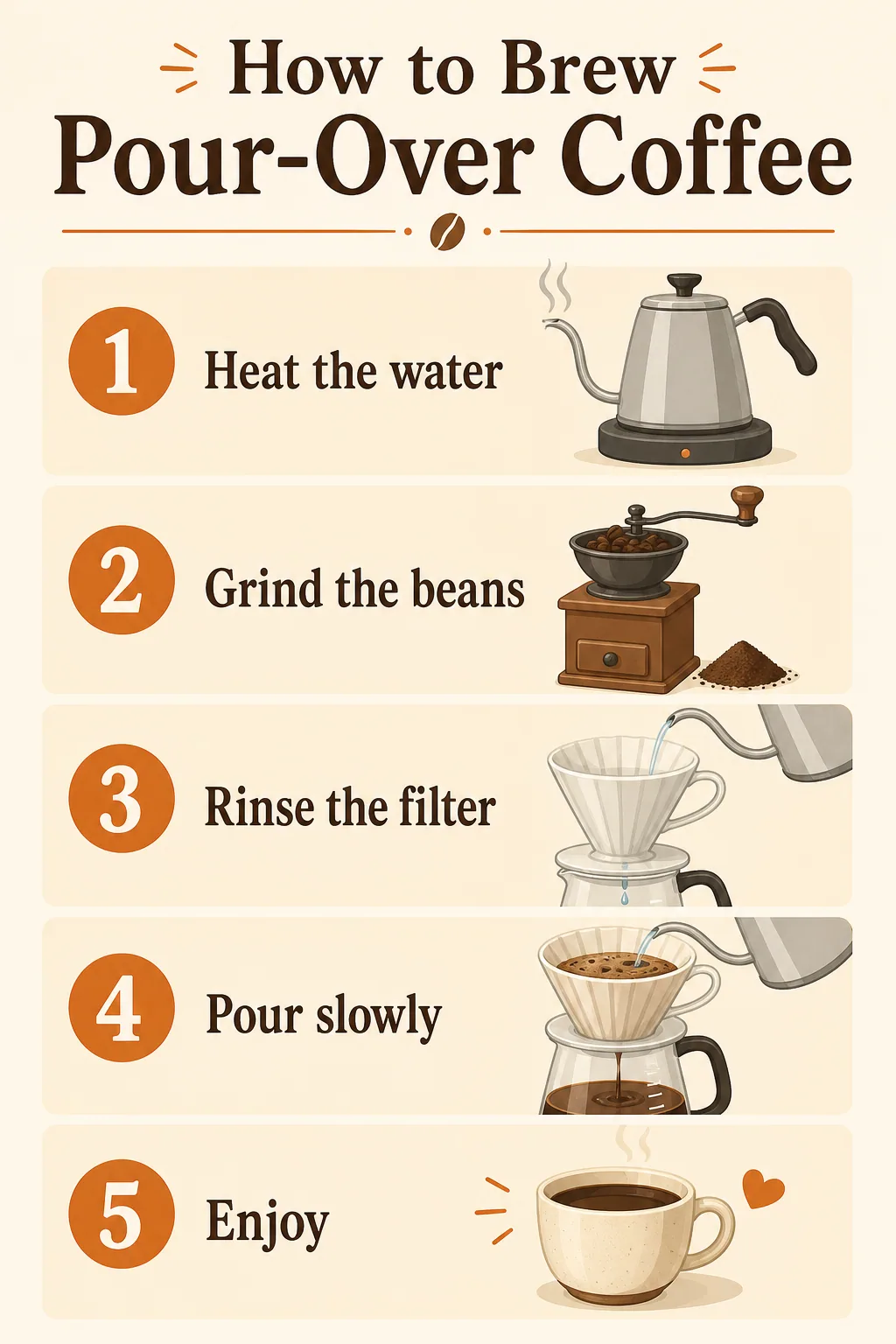
Pour-over coffee infographic. Made in Studio with GPT Image 2. Text checked by eye.
A clean vertical infographic titled "How to Brew Pour-Over Coffee" with five numbered steps and simple flat icons: "1 Heat the water", "2 Grind the beans", "3 Rinse the filter", "4 Pour slowly", "5 Enjoy". Warm cream background, brown and orange accents, readable lettering, no logos.
 GPT Image 2
3 to 7 credits by quality
Lisbon trip plan infographic. Made in Studio with GPT Image 2. Text checked by eye.
A clean vertical infographic titled "5-Day Lisbon Trip Plan" with five day cards: "Day 1 Alfama walk", "Day 2 Belém tower", "Day 3 Sintra trip", "Day 4 Cascais beach", "Day 5 Tram and fado". The word Belém is spelled with the accent on the e. Flat icons only: no signs, no destination boards and no extra lettering anywhere on the icons or illustrations. Teal and sand colours, readable lettering, no logos.
 GPT Image 2
3 to 7 credits by quality
Repot a plant infographic. Made in Studio with GPT Image 2. Text checked by eye.
A clean vertical infographic titled "How to Repot a Plant" with five numbered steps and simple flat icons: "1 Pick a pot", "2 Loosen the roots", "3 Add fresh soil", "4 Place the plant", "5 Water well". Soft cream background, green and terracotta accents, no extra lettering on icons, readable lettering, no logos.
 GPT Image 2
3 to 7 credits by quality
Meal prep infographic. Made in Studio with GPT Image 2. Text checked by eye.
A clean vertical infographic titled "Weekly Meal Prep" with four numbered steps and simple flat icons: "1 Plan meals", "2 Shop", "3 Cook in batches", "4 Pack boxes". Warm white background, green and orange accents, no extra lettering on icons or containers, readable lettering, no logos.


Infographic maker AI for how-tos, plans and checklists
An infographic works when the content is short: a title and four or five steps. The four examples are a recipe, a trip plan, a plant guide and a meal-prep routine. Each has a title, numbered steps and one flat icon per step.
Use the tall shape for posts, stories and pins. The examples are 1024 by 1536 pixels, a 2:3 ratio.
What to write in the prompt
Every example prompt follows the same pattern.
- Start with the shape and the title: a clean vertical infographic titled with the title in quotes.
- Put each step in quotes, numbered, so the model copies the words instead of inventing them.
- Name the background and the accent colours.
- Add no logos, and ask for no extra lettering on icons.
Proofread before you share
AI lettering can still be wrong. In our own Lisbon run we had to ask for the accent in Belém and for no extra lettering on the icons, and we checked every word by eye afterwards.
Treat the result as a draft. Check spelling, numbers and names, and run it again with the fix in the prompt if something is off.
What the infographic generator does and does not do
| Task | Does Lovino do it? | Detail |
|---|---|---|
| Lay out a title and steps with icons | Yes | GPT Image 2 in Studio, from 3 credits |
| Use the exact words you quote | Mostly | Quote each line, then proofread. Mistakes can still appear |
| Check your facts or numbers | No | It draws what you type and does not verify it |
| Build a chart from a spreadsheet | No | It makes one picture and does not read a file |
| Give an editable layout | No | You get a flat image, so a change means running it again |
What it can't do
- Text inside the picture can have spelling or number mistakes. Proofread every result.
- It does not check facts. It draws the words you give it.
- The output is one flat image, not an editable layout with layers.
- Medium and high quality need a paid plan. Free daily credits cover low quality only, which is 1 infographic a day.
- Free-plan images carry a watermark. Content made on paid plans is watermark-free.
Start free. Scale anytime.
One credit system across Studio, Flow and every tool. Cancel anytime.
| Plan | Per month | Credits |
|---|---|---|
| Free | $0 | 3 credits per day |
| Plus | $7.99 | 50 credits per month |
| Pro | $19.99 | 200 credits per month |
| Max | $44.99 | 500 credits per month |
Questions, answered.
Is the AI infographic generator free?
Only at low quality. GPT Image 2 at low quality costs 3 credits, and the 3 free daily credits cover 1 infographic a day, with a watermark. Medium costs 5 credits and high costs 7 credits, and both need a paid plan.
What should I write in the prompt?
The title, the numbered steps with each line in quotes, the background and accent colours, and no logos. The examples on this page show the full wording.
Is the text in the infographic correct?
Often, but not always. AI lettering can have spelling or number mistakes, so proofread every word. If one is wrong, run it again with the correction in the prompt.
Which model should I use?
The examples were made with GPT Image 2, which is built to render text. Pick it in Studio and choose a tall 2:3 shape.
What size is the infographic?
The examples are 1024 by 1536 pixels, a 2:3 ratio. GPT Image 2 in Studio offers 1:1, 3:2 and 2:3.
Can it make a chart from my data?
No. It draws one picture from your description. It does not read a spreadsheet or check your numbers.
Can I use the infographics commercially?
Content made on paid plans is watermark-free and yours to use commercially. Free-plan images carry a watermark. Check the text first.
More AI tools
Related guides
- On-Brand in One Prompt: AI Carousels, Thumbnails and PostersCarousels, thumbnails and posters each have their own rules. Iris skills handle consistency, readable text and hierarchy so your designs come out on-brand.
- YouTube Thumbnail Prompts for AI: Layout, Size and ExamplesPrompts that leave room for your title, with the real prompts behind two 16:9 thumbnail bases, a layout guide for 1280 x 720 and honest limits.
- GPT Image 2 Prompts: Copy-Paste Templates for Text in ImagesCopy-paste GPT Image 2 prompts for signs, posters, flat-lays and product shots, with the real prompt behind four examples and what each quality tier costs.
Ready to try AI Infographic Generator?
GPT Image 2 · low 3, medium 5, high 7 credits · medium and high need a paid plan. No purchase is made until you confirm a generation.