White Background Product Photos With AI: The 2026 Rules
White background product photos with AI: what marketplaces ask for, when a soft white studio shot is enough, and how to get a pure white main image.
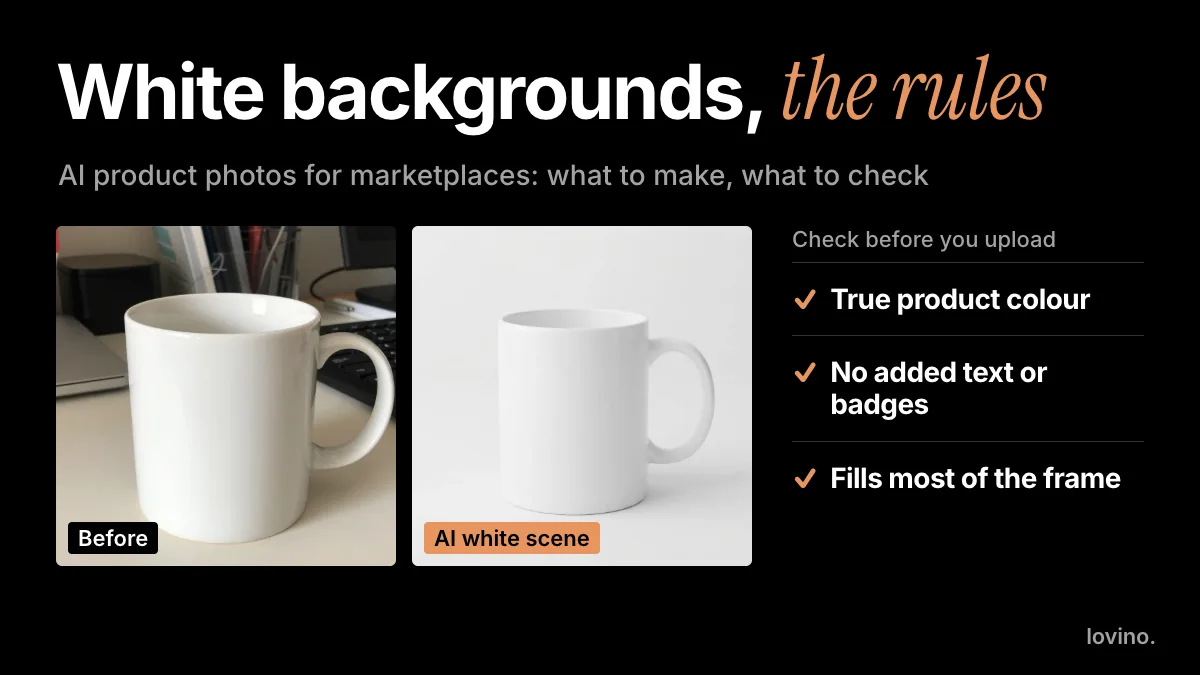
There are two ways to make white background product photos with AI, and they are not interchangeable. You can cut your own photo out with a background remover and place it on pure white, or ask an AI scene tool for a white studio shot. The first keeps your real product pixels and gives you true white. The second looks more like a studio, but it redraws everything around the product, and its white comes out soft, not pure.
Which one you need depends on where the photo is going. Google's published image rules are a good model for any listing: show the product honestly, let it fill most of the frame, and add no text, logos or watermarks. This guide covers those rules, the method that fits each, and what AI must never change.
What do marketplaces require for white background product photos?
Rules differ by channel, and they change. Here is what we could check, as of October 2026.
| Where you sell | What to check first |
|---|---|
| Google Merchant Center and Shopping | Size, how much of the frame the product fills, and a ban on added promotional overlays. Details below. |
| Amazon | Main-image rules live in Seller Central and vary by category. Many marketplaces ask for a plain white main image, so read the current requirements for yours before you upload. |
| Etsy | Etsy publishes its own photo guidance in the Seller Handbook. Check the current size and ratio advice there. |
| Your own store | No white rule. Pick one background and one crop, and use them for every product. |
We quote numbers only for Google, whose page we could read in full.
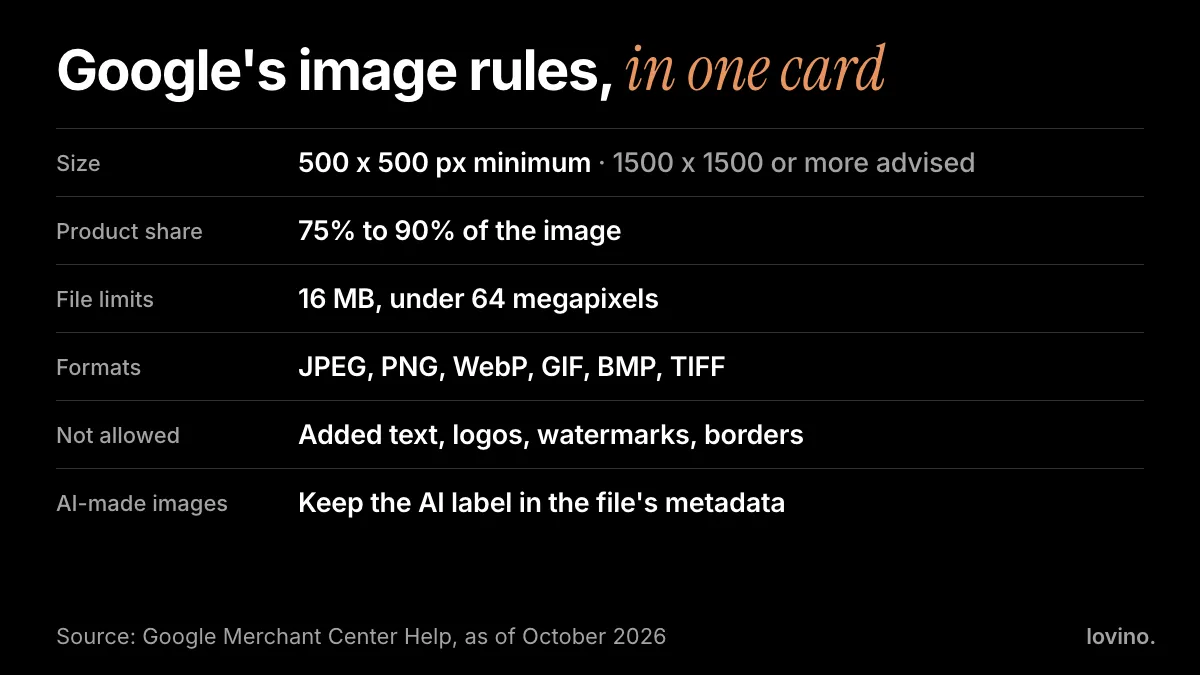
Three Google details are easy to miss. Its page lists 500 by 500 pixels as the minimum, says that requirement covers all products from 31 January 2027, and recommends 1500 by 1500 or more. Images made with generative AI must keep the metadata that marks them as AI-generated, and Google asks you not to remove it; a screenshot or a heavy re-export can drop it, so upload from the original download. And the product should take up no less than 75 percent and no more than 90 percent of the image.
Which method gives you a true white background?
Not every AI route ends in pure white, and that is where sellers get caught out.
| Method | Keeps your real product pixels? | Background you get | Best for |
|---|---|---|---|
| Background Remover, then place on a white canvas | Yes | Pure white, because you set it | Marketplace main images |
| Product Photo, White scene | No, the scene is redrawn | Soft studio white with a shadow | Ads, store pages, secondary images |
| A Studio text prompt | No, it is a new image | Whatever you describe | Concepts and mock-ups, not a listing |
The White scene looks good, but look closely at the example below. The backdrop is a soft grey-white. The corner pixels of this web copy read between roughly 220 and 235 on the 0 to 255 scale, not 255, and any colour picker will show you the same. That is a lovely studio look and a poor match for a rule that says pure white.
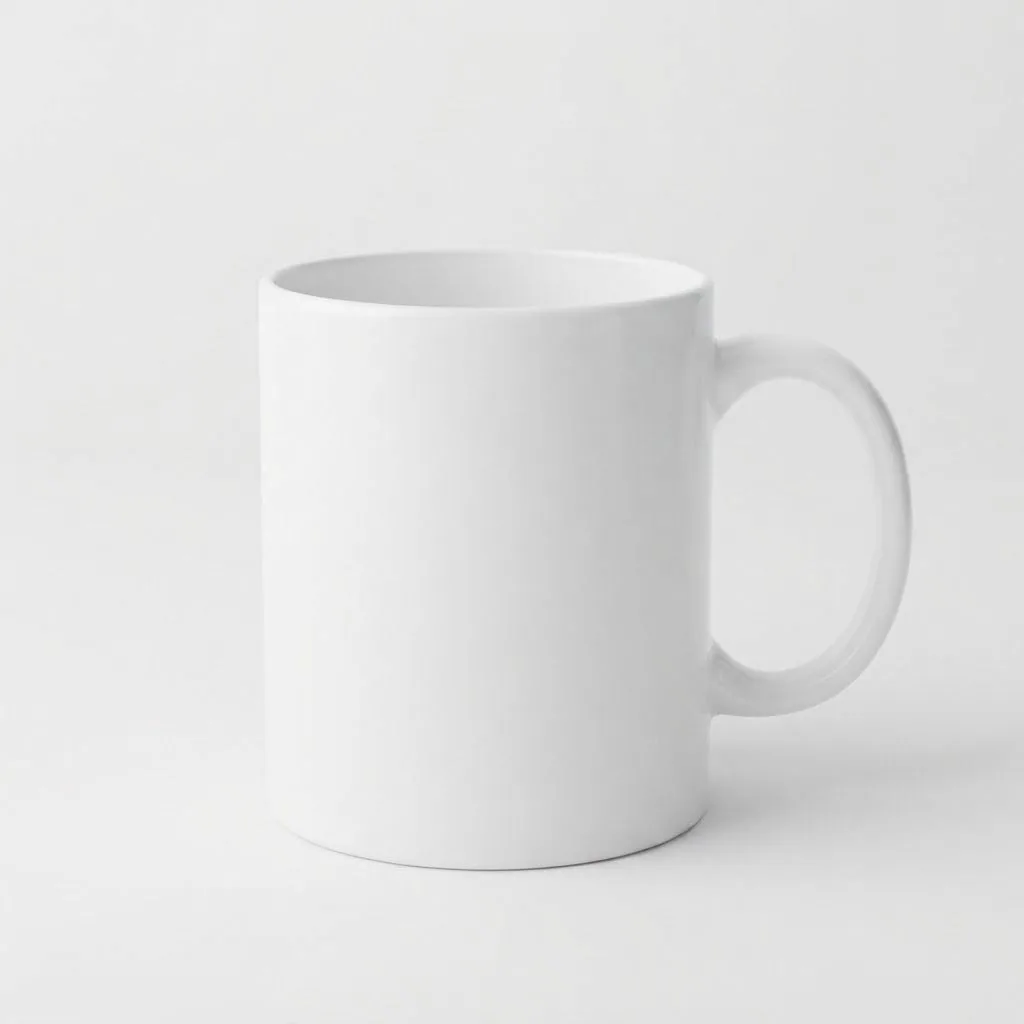
So use the scene tool when the look matters most, and the cut-out route when the rule does.
How do you make a pure white product photo, step by step?
- Shoot it plainly. Use window light, a plain surface and the whole product in frame. Keep the camera level. A messy desk is fine, because the background is going.
- Cut it out. Upload the photo to Background Remover. It returns a transparent PNG. Glass, fringe and hair are the hard parts, so check them.
- Place it on white. Lovino gives you the transparent cut-out. Put it on a canvas filled with pure white in the editor or store builder you already use, then export. Check what fills the transparent area when you export, because some apps fill it with black.
- Size the product. Aim for the 75 to 90 percent range if you sell through Google.
- Check the edges. Zoom to 200 percent and look for halos, chewed corners and leftover desk.
- Keep the original. Save the uncut photo. You will want it for the next listing.
Background Remover accepts JPG, PNG and WebP, returns a transparent PNG and costs 1 credit a run. Pricing lists the plans.
How much of the frame should the product fill?
Too small and shoppers lose the detail. Too tight and one automatic crop can cut an edge.
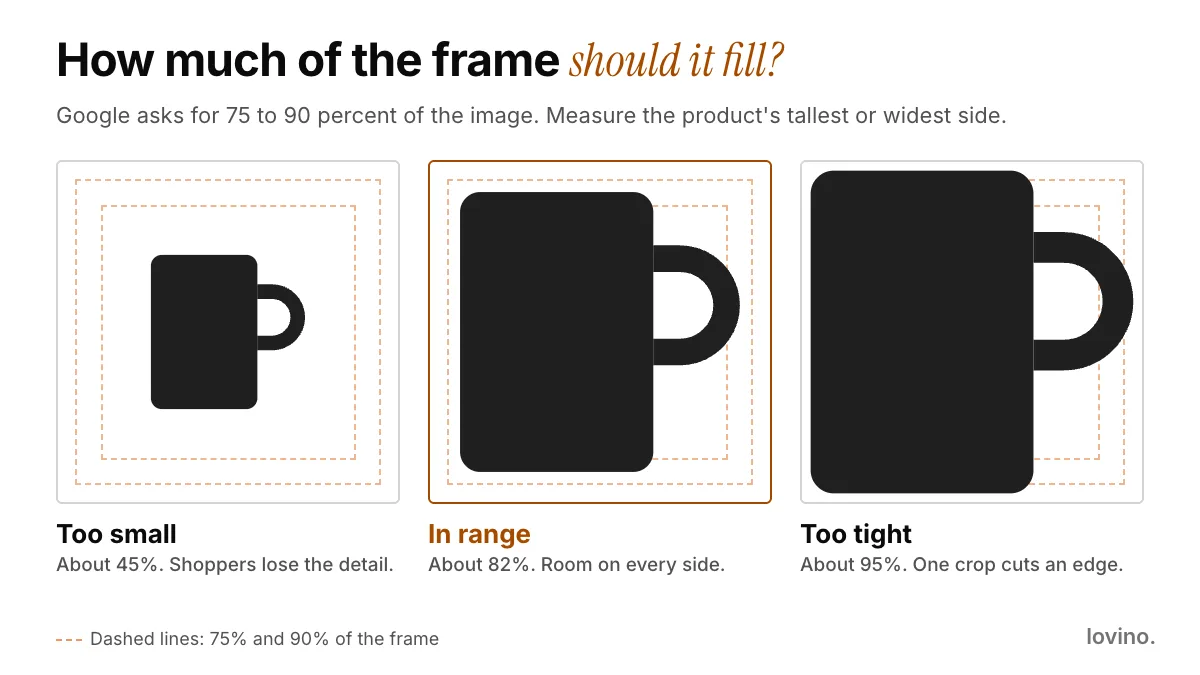
Google does not say how it measures the share, so a safe habit is to compare the tallest or widest side of the product with the image. Leave breathing room on every side, and centre the product.
What are AI scenes good for, then?
Secondary images. Once the white main image is safe, scenes can show size, mood and use. The Product Photo tool offers six scenes, and here they all are from one plain photo of a mug:

The tool asks the model to keep the product's shape, colours and printed text, and you can add a short note about light or props. It works from a plain product photo without cutting it out first, and costs 2 credits a run. Our AI product photography guide and Shopify product photos guide cover more scenes.
If you need a concept shot of a product that does not exist yet, a Studio prompt works:
Studio product photo of a plain unbranded white ceramic mug on a seamless white backdrop, soft even light, product centred and filling most of the frame, no text, no logos
That is a concept, not your product. Do not use it as the main photo for something you actually sell. More wording lives in product photo prompts.
What must stay real? A short list of things AI must not fake
Styling is fine. Misleading is not. Watch the six scenes above once more: in the wooden scene, the handle has moved to the left. On a plain mug that is harmless. On a mug with a printed logo, it would be a mirrored logo.
- Colour. Compare the result with the real item in daylight. If the red went orange, fix it or reshoot.
- Printed text, logos and orientation. Models can garble or mirror labels. If a label changed, use the cut-out route instead.
- Size and shape. Do not let a scene make the product look bigger than it is.
- What is included. Show only what the customer receives. Google asks that nothing sold separately appears in the main photo.
- One variant per image. For colours and finishes, make one image for each. Do not borrow one colour's photo for another.
- Added badges. No price, discount or "Free shipping" text on the image. Google lists these as promotional overlays that cause a disapproval.
Uploaded photos are processed by third-party AI providers, and you need an account to generate. Free results carry a watermark, and marketplace rules such as Google's ban added watermarks, so do not leave one on a listing. Paid plans remove it, and every user, free or paid, can use their results commercially.
What about the rest of your launch?
The same cut-out step also makes stickers. And if the product is going on a sale poster, our AI event flyer guide shows how to keep the words readable.
Ready to start? Open Background Remover, cut out one product and put it on white. Then make a scene version, and keep each for the job it fits.
Questions, answered.
Can AI make a pure white background for product photos?
Yes, if you pick the right method. Cut your own photo out with a background remover and place it on a canvas filled with pure white. An AI scene tool's White scene is a soft studio white, not pure white, because the whole backdrop is redrawn.
Are AI-generated product photos allowed on Google Shopping?
Google's published image rules ask that images made with generative AI keep the metadata marking them as AI-generated, and that sellers do not remove it. The image must also show the real product without added text, logos or watermarks. Check the current page before you upload.
How much of the image should the product fill?
Google asks for no less than 75 percent and no more than 90 percent of the full image. Centre the product and leave even space on every side so an automatic crop does not cut an edge.
Do I need to remove the background before using the Product Photo tool?
No. The Product Photo tool takes one plain product photo and redraws everything around the product in the scene you choose. Use Background Remover separately when you want your own pixels on a pure white canvas.
Can I use free AI product photos on a listing?
Free results carry a watermark, and marketplace rules such as Google's ban added watermarks on product photos. Paid plans remove it. All users can use their results commercially, but the watermark makes free results a poor fit for a listing.