AI Photos for Restaurants: Style Real Dishes, Never Invent Them
AI photos for restaurants should polish the dish you really serve: better light, a cleaner background, a menu board that reads right. Plus what never to fake.
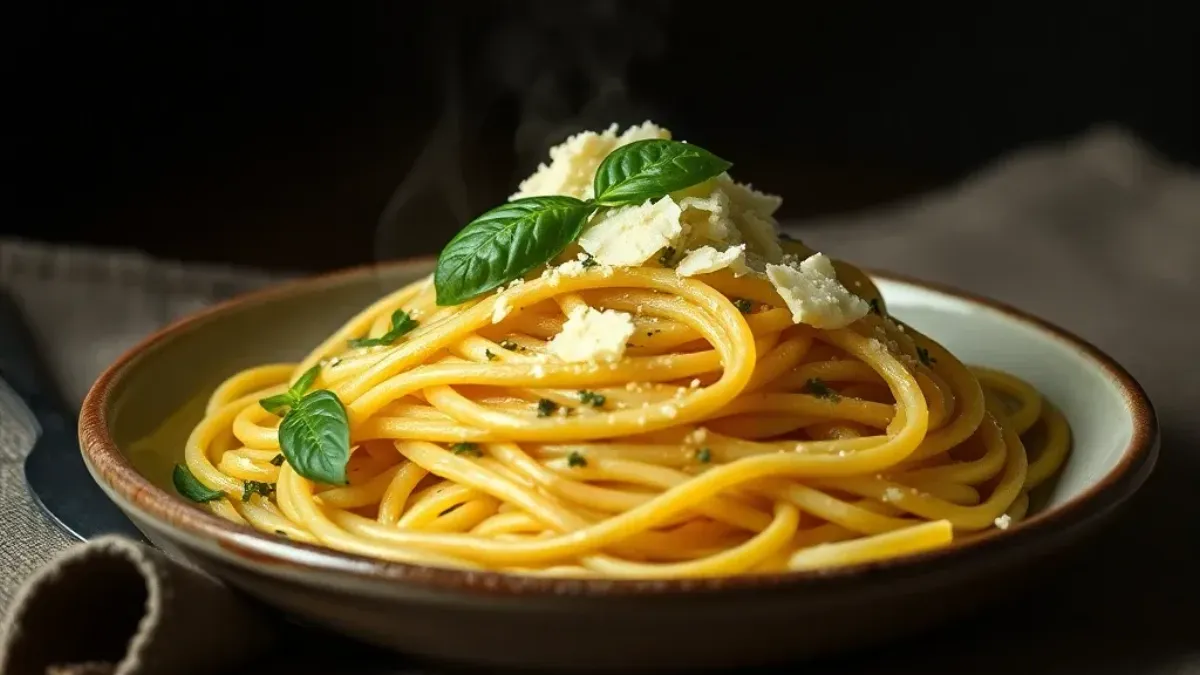
AI photos for restaurants earn their place when they make a real dish look the way it tastes: better light, a calmer background, the right shape for a Story or a menu card. They do not earn it when they invent food. A guest who orders the dish in the picture and gets something else remembers that, not the lighting.
This guide is for owners and café managers who shoot on a phone. It covers the fixes worth making, a four-step workflow, how to build a specials board without misprints, and the short list of things that must stay real.
What can AI photos for restaurants and cafés actually do?
AI is good at the work around the food. It is poor at being the food. Split your jobs that way and most decisions get easy.
| Job | Where AI helps | What stays real |
|---|---|---|
| Dim dining-room photos | Lift the light, calm a color cast, reduce grain | The dish, the plate, the portion |
| Cluttered counter behind the plate | Clear it or restyle the background | The food itself |
| Specials board or menu card | Draw the board and the headline | The item list, prices, allergen notes |
| Stories and delivery-app tiles | Reframe and resize | Anything a guest will taste |
| Seasonal posters | Make the artwork | The offer and the dates |
| A short clip for your feed | Add gentle motion to a still | Claims about the food |
How do you improve a real dish photo with AI?
Start from a photo of a plate you actually served. Everything below works on that photo and nothing replaces it.

- Shoot the real dish. Use window light, a plain surface and a position just above the plate. A phone is enough. The AI works from your pixels, so a sharp start beats a clever prompt.
- Fix the light and the clutter. Run the photo through the Photo Enhancer. Its Enhance mode sharpens, and its Denoise mode takes grain out of evening shots. Then use the Magic Eraser on a stray napkin or a sauce bottle. It generates new detail for the gap, so a large object on a busy background can leave a patch. Erase in stages.
- Restyle the background. Open the AI Image Editor and describe the change in plain words. Always say what must not move.
- Compare with the plate. Hold the result next to the real dish. Count the garnish. Check the sauce color and the plate edge.
Two prompts that follow the "change this, protect that" pattern:
Replace the cluttered counter behind the bowl with a plain dark wood table and soft window light from the left. Keep the food, the bowl and the portion exactly the same. Do not add or remove any ingredient.
Brighten the photo and correct the yellow color cast. Keep the dish, the plate and every ingredient exactly as they are.
An edit tool redraws the picture. It does not cut and paste. Small details such as a herb leaf or a grill mark can shift, which is why step four is not optional. If something changed, run it again with a tighter instruction or use your original.
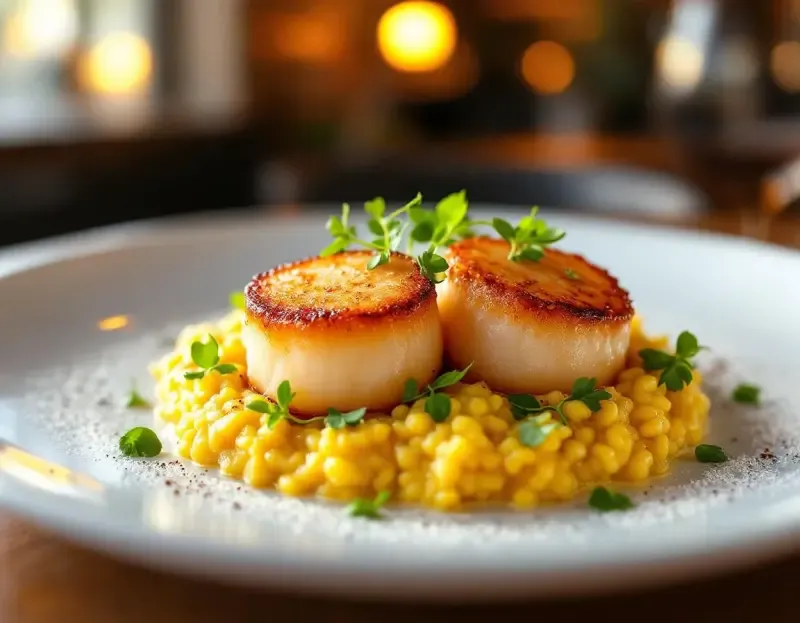
That scallop plate is an AI-made concept. Use it as a mood board for how you might light your own scallops. Do not put it on a menu: it is not a photo of anything you cooked.
How do you design a menu or specials board with AI?
Use a model built for text whenever a picture contains words. GPT Image 2 and Ideogram are both aimed at that job, and the AI Poster Generator is the quickest way in. Ideogram needs a paid plan.
Even so, small print breaks. Look at this chalkboard.
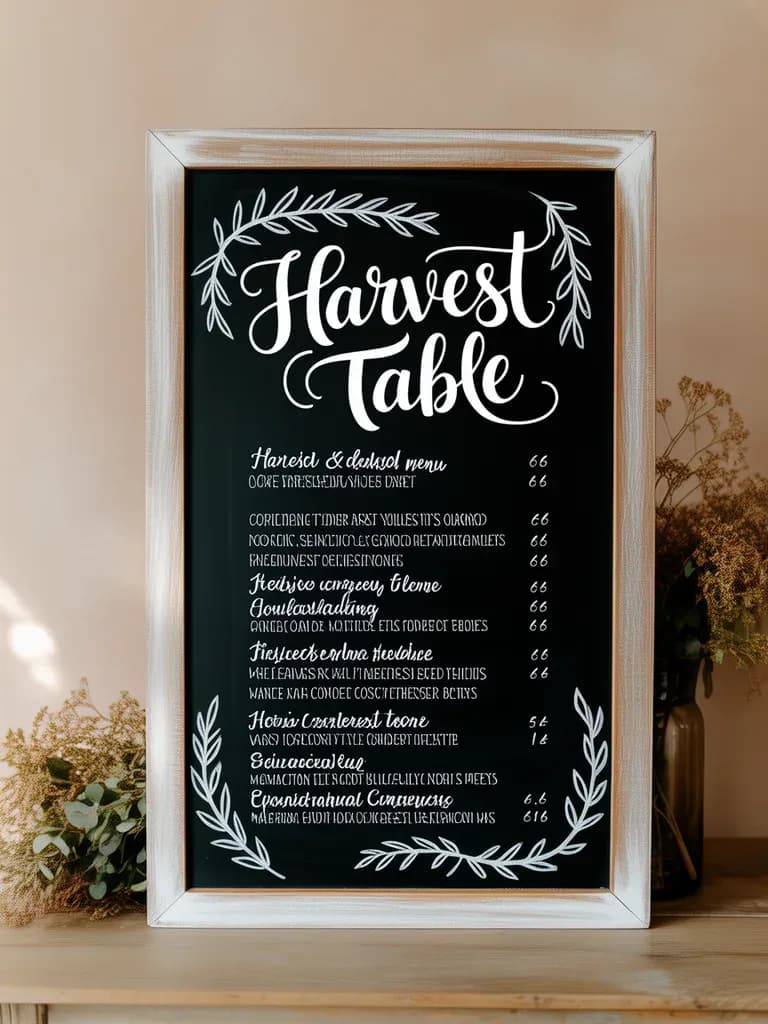
The headline is readable. The lines under it are not words. A guest would spot that in a second, and so would a reviewer.
The rule that works: let the AI draw the board and the headline, then type the items, prices and allergen notes yourself in a design app or on the board itself.
A hand-lettered chalkboard specials board in a warm café, dark green board, white chalk, a leafy border, headline "Today's Specials". Leave the lines under the headline blank.
Keep quoted text short. Four or five words usually survive. A full menu does not.
Can you make short videos of your food with AI?
Yes, with limits. Image-to-video tools animate a still. Video spends paid credits, and there is no free video allowance, so budget for it.
That clip is AI-made from a text prompt. It is not footage of a real café, and it is not a pour from your machine. When you animate your own dish photo with Image to Video AI, keep the motion small: steam rising, a slow push-in. Video models often warp fine text, logos and hands, so frame the plate, not the menu card or the chef. If you pick Seedance 2.5, note that it needs a paid plan and will not take a photo with a person's face as the start frame.
How should you size photos for Google, delivery apps and Stories?
Generate in the shape you will post. Cropping an AI image afterwards can cut off the plate. The guide to choosing AI image aspect ratios goes deeper.
| Where it goes | Shape to aim for | Note |
|---|---|---|
| Google Business Profile | Square | As of October 2026: JPG or PNG, 10 KB to 5 MB, 720 by 720 pixels recommended, 250 by 250 minimum |
| Delivery-app tile | Check the app's own guide | Each app sets its own rules |
| Instagram or Facebook feed | 4:5 portrait or 1:1 | Keep the plate in the middle two-thirds |
| Stories, Reels, TikTok | 9:16 | Leave the top and bottom clear of text |
What should a restaurant never fake with AI?
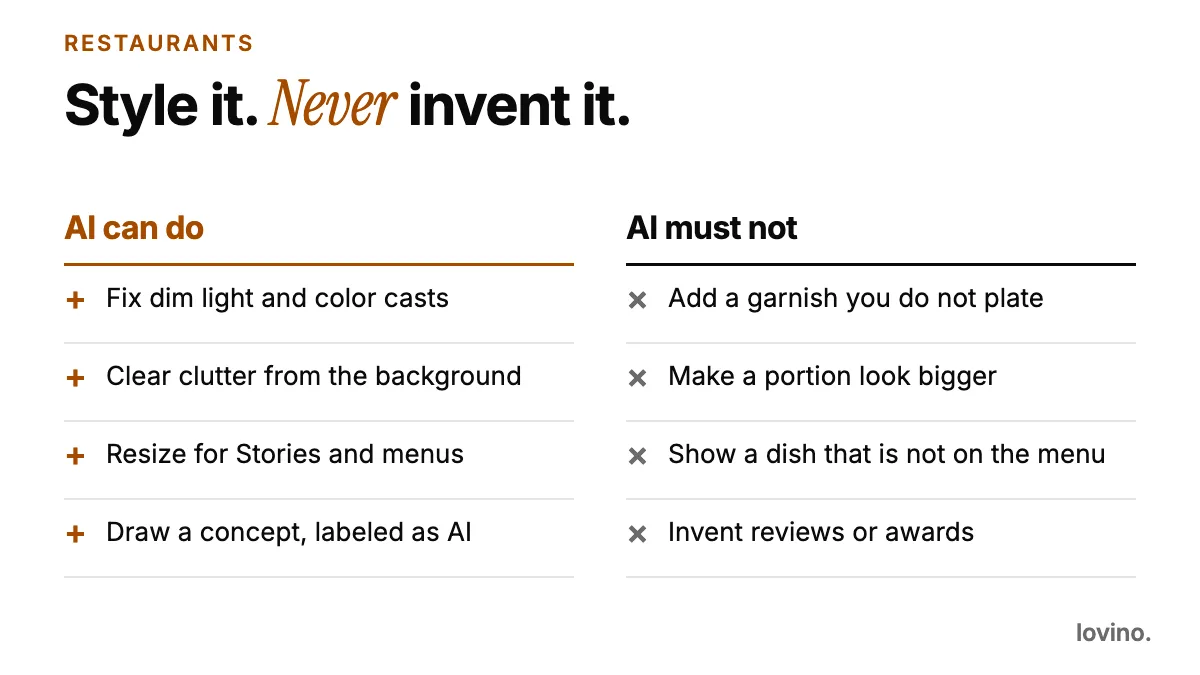
- Dishes you do not serve. If it is not on the menu, it is not a menu photo.
- Portions and ingredients. A bigger-looking portion is a promise. A hidden or added ingredient is also an allergen risk, not just a style choice.
- Reviews, ratings and awards. The US Federal Trade Commission has a final rule on fake reviews and testimonials that covers AI-generated ones. Check the rules where you operate.
- Your own room and your own people. As of October 2026, Google's Business Profile guidelines ask for photos with "no significant alterations or excessive use of filters", and sum it up as "the image should represent reality". An AI dining room is not your dining room.
Concept art has a place if you label it. A poster for a new seasonal menu can be illustrated. The plates in your delivery listing cannot.
What mistakes make AI food photos backfire?
- Pushing the color too far. Food that glows is food nobody recognizes at the table.
- Restyling the background into somewhere you are not. A rustic wood table in a white-tile café reads as a different restaurant.
- Using one hero shot everywhere. The same photo on every channel starts to look like stock. Rotate real dishes.
- Skipping the side-by-side check. The edit looks fine until someone counts the garnish.
- Printing a watermarked result. Free results carry a watermark. Use a paid result for a printed menu or a delivery listing.
What should you know before you run your first plate?
- Sign up first. Generating needs an account.
- Free credits stretch to some tools, not all. Upscaling, video and some models need paid credits. Pricing has the current numbers.
- Free results carry a watermark, paid ones do not. Everyone, free included, can use their results commercially.
- Your photo goes to a third-party AI provider. Do not upload anything you would not hand to an outside company, such as a guest's face.
Start with one plate
Pick the dish that sells best, shoot it in window light, and run it through the workflow above. If the result shows a plate you would proudly send out of the kitchen, post it. If it shows anything else, delete it. For menu boards and seasonal promos that go beyond the dining room, see AI photos for bakeries. For the wider small-business picture, read AI marketing visuals for small business. Then try the AI Image Editor on that first plate.
Questions, answered.
Can I use AI photos on my restaurant menu?
Use AI to polish photos of dishes you really serve: better light, a cleaner background, a better crop. Do not use AI to show dishes, portions or ingredients you do not serve. A menu photo is a promise to the guest.
Can I post free AI results on my restaurant's social accounts?
Yes. All users, including free users, can use what they make commercially. Free results carry a watermark, and paid results do not, so paid is the cleaner choice for a public menu or listing.
What photo size does Google want for a restaurant listing?
As of October 2026, Google's Business Profile help asks for JPG or PNG files between 10 KB and 5 MB, recommends 720 by 720 pixels, and sets a minimum of 250 by 250. It also asks for photos that are in focus, well lit and not heavily altered.
Is my dish photo shared with anyone when I upload it?
Photos you upload are processed by third-party AI providers so the model can make your result. Do not upload anything you are not comfortable sharing that way, and keep guests' faces out of your uploads.