AI Product Photos for Etsy Sellers: Style It, Never Fake It
AI product photos for Etsy sellers: turn one plain phone shot into white-background and lifestyle listing photos, and learn what must stay true to the item.
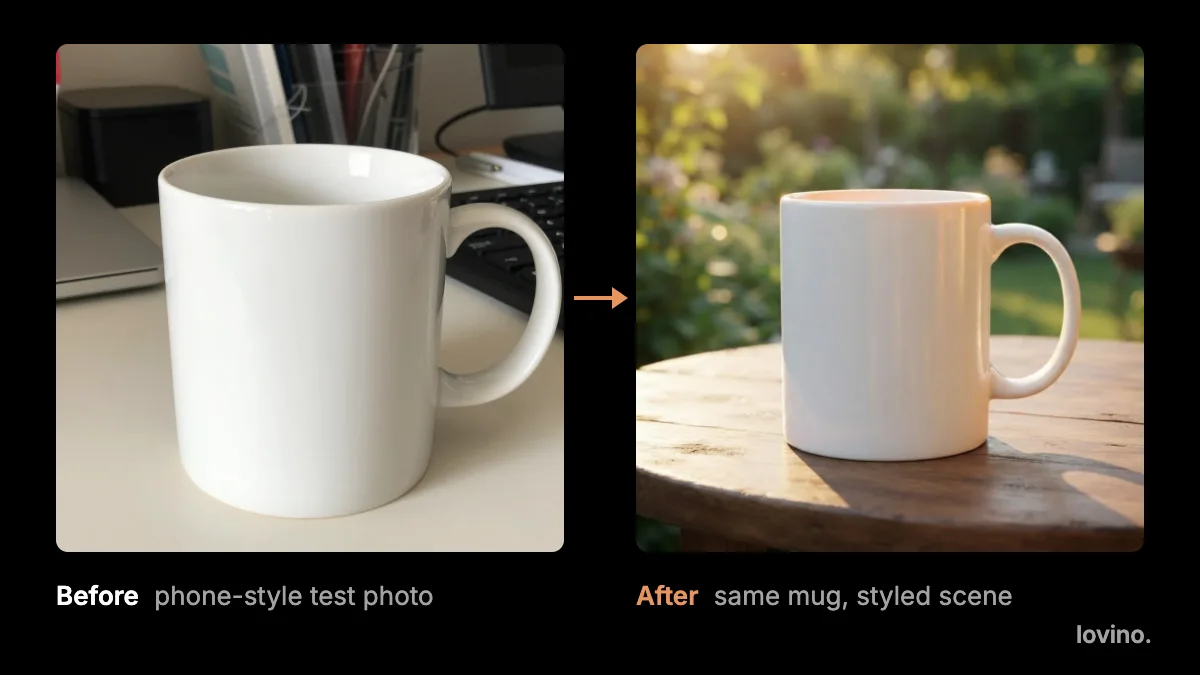
AI product photos for Etsy sellers work best as a styling tool, not a stand-in for the item. You photograph the real thing once, then AI changes the surface, the light and the room around it. That gives you a clean white-background shot and a lifestyle shot without a studio. One rule keeps you safe: the buyer must receive what the photo shows.
This guide covers the workflow, which listing photos AI can help with, and the things you should never fake.
Are AI product photos for Etsy sellers allowed?
Etsy sets its own rules for how items are made and shown, and they change. Read Etsy's current seller policy and its listing photo guidance in the help pages before you publish anything.
Whatever the rules say today, the honest test never changes. Would a buyer who opens the parcel say "that is the item in the photo"? If yes, styling is fine. If no, the photo is a problem, however it was made.
Which listing photos can AI help with?

Think of a listing as six small jobs. AI can style three of them. The other three need your camera, because they prove something about the real item.
| Photo | Its job | Use AI? |
|---|---|---|
| Main photo | Stops the scroll in search results | Yes, if the item stays exact |
| White background | Shows the item clean and plain | Yes |
| In use | Shows it in a real home | Yes |
| Scale | Shows size next to a hand or a ruler | Shoot it real |
| Close-up | Shows stitching, grain or glaze | Shoot it real |
| Packaging | Shows what arrives in the post | Shoot it real |
The pattern is simple. AI can change the setting. It should never be the only evidence of size, material or what is in the box.
How do you make Etsy listing photos with AI?
- Photograph the real item. One object, daylight, sharp focus, plain background. A phone is enough.
- Open the Product Photo tool and upload it. The AI product photography tool places your item in one of six scenes: white, marble, lifestyle, outdoor, kitchen or wooden. You do not need to cut the item out first.
- Add a short note if you like. Light or props work well, such as "soft morning light, a linen cloth beside it".
- Generate, then compare with the real item. Hold the result next to the object. Check colour, proportions, handle shapes, printed text and any logo.
- Keep the winners and shoot the rest. Use AI for photos one to three. Take the scale, close-up and packaging photos yourself.
Each run takes one photo and one scene, so start with your best sellers.
If you edit in Studio with your own prompt instead, borrow the guard line that the tool itself uses:
Place this exact product on a rustic wooden table by a window, as a high-quality product photo. Keep the product's shape, colours, proportions and any text already printed on it exactly as they are. Do not add any other text, letters, logos or signage.
The second sentence matters most. It tells the model what must not change. It is a request, not a guarantee, so you still check the result.
Which scene suits which handmade item?
Match the scene to where a buyer would really use the thing.
| Item | Scenes to try | What to check |
|---|---|---|
| Ceramics and mugs | Wooden, kitchen, lifestyle | Glaze colour, handle shape, rim |
| Knits and textiles | Lifestyle, wooden | Stitch pattern, texture, true colour |
| Prints and paper goods | White, wooden | Every printed word and line |
| Wood and leather goods | Wooden, outdoor | Grain, stitching, edge finish |
| Jewellery | White, marble | Stone colour, metal tone, true size |
| Candles and home scents | Lifestyle, wooden | Label, wax colour, jar shape |
Jewellery and candles each have extra things to get right, so they have their own guides: AI product photos for jewelry brands and AI product photos for candle brands. For the wider picture on marketplace-ready images, read AI product photography for e-commerce.
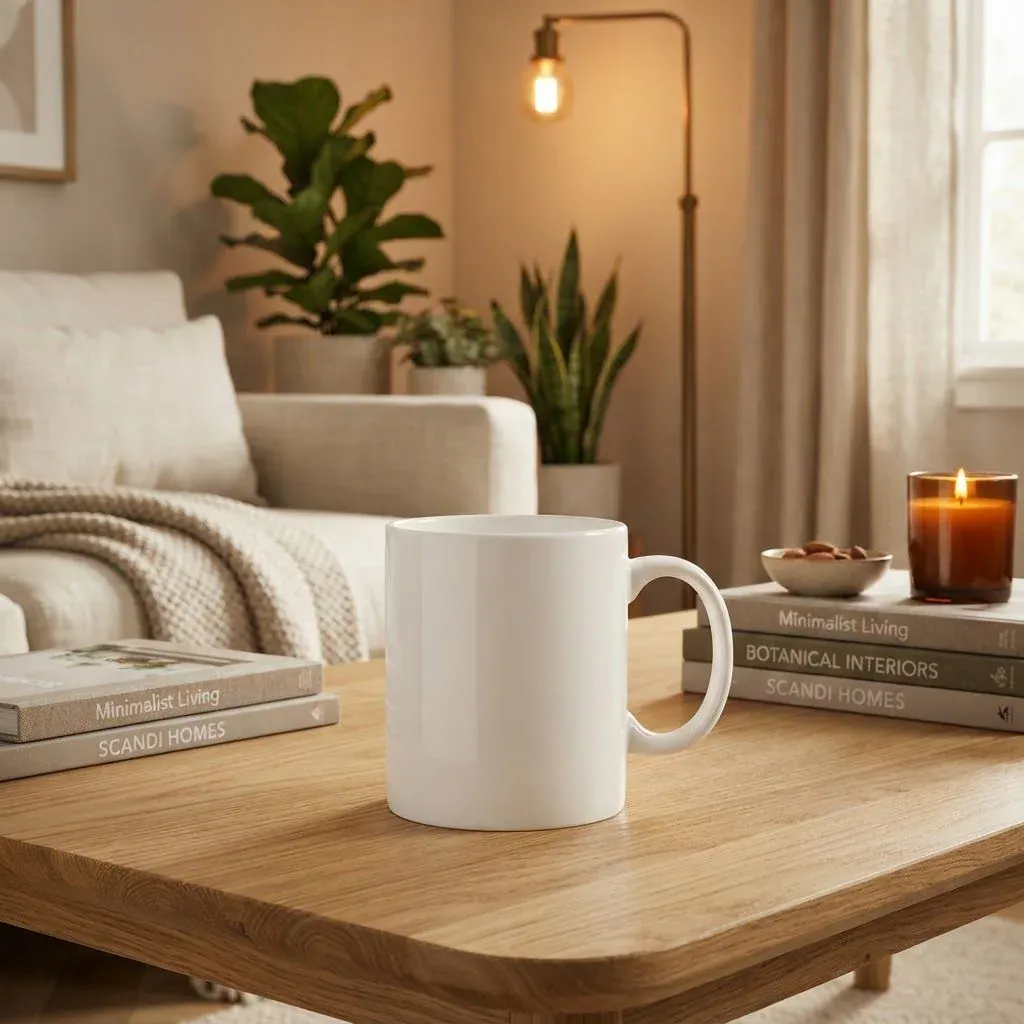
Here is the test mug from the top of this page in the Lifestyle scene. Like every mug in this guide, it is an AI-made test photo of an unbranded product, so no real shop's item appears.
What should you never fake on an Etsy listing?
AI redraws the picture. That is why it can make a plain photo look great, and why it can also drift from the real item. Treat these as hard limits.
- Colour and finish. Glazes, dyes and stains vary. Show the real range, not a smoother, brighter version.
- Size. A close, dramatic scene can make a mug look huge or an earring look chunky. Always add a real scale photo.
- Features. Do not show a lid, a pocket or a clasp the item does not have.
- Flaws. A visible knot in the wood or a pooled glaze is part of handmade. Do not paint it out of the main photo if the buyer will see it on delivery.
- Props. Say so in the description when a prop is not included.
- Made-by claims. AI can make anything look hand-thrown. It cannot make it true.
Printed text is the other trap. Image models redraw lettering, so a logo or a line of text on your product can change. Check small print letter by letter. For flat artwork such as a print, cut your original file out with the background remover and place it on an AI-made background in your own layout tool, so the artwork itself is never redrawn.
Drift can also be small and easy to miss. In one result from the tool's Wooden scene, the handle ended up on the opposite side of the mug.
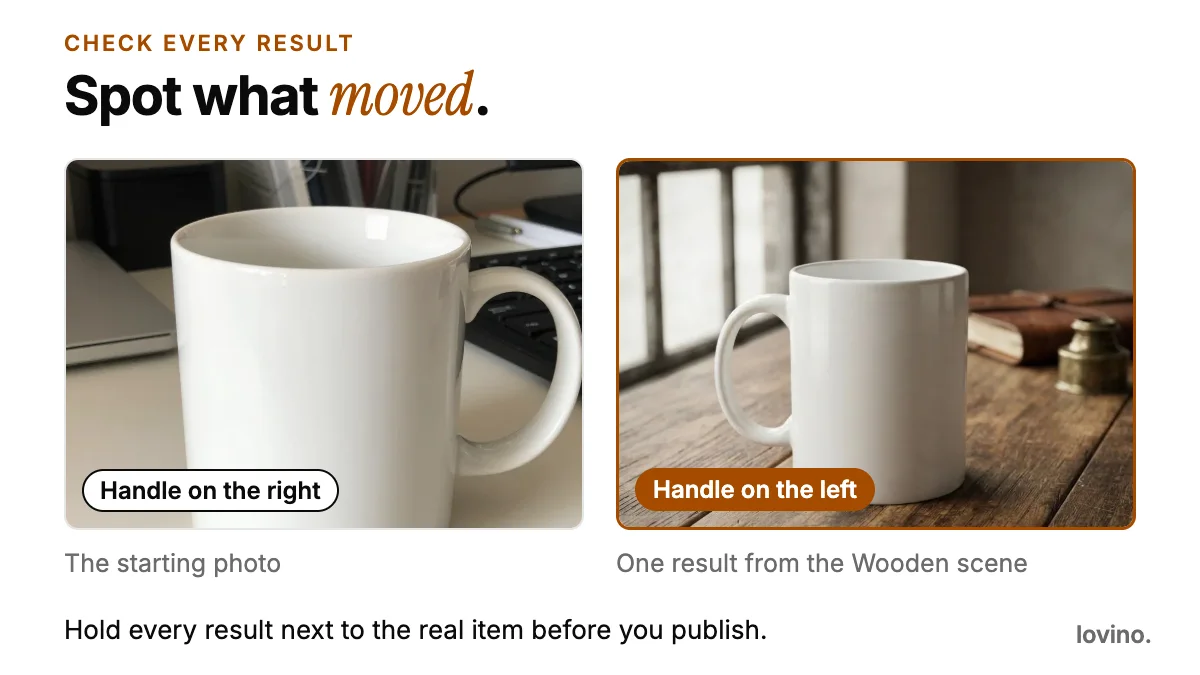
Hold every result next to the real item before you publish it.
Can a short video help your listing?
If your listing has room for a clip, a few seconds of motion shows depth and finish that a still cannot. Image to video animates one photo into a short clip, and first and last frame video joins two photos, like the closed and open gift box below.
Video uses paid credits, and clips run only a few seconds. Fine text and logos can change shape as they move, so animate the object, not your branding. Use motion for gift packaging, a lid opening or a slow turn, and keep the still photos as the proof.
How do you keep a consistent look across your shop?
A shop looks professional when the photos feel related. Pick two scenes and stick with them. For example, white for photo two and wooden for the hero. Write down the note you used, such as "soft morning light", and reuse it across the range. Change one thing at a time when you test.
Consistent scenes also help with other platforms. The same styled photo works in your own shop, as covered in AI Shopify product photos. For prompt wording you can adapt, see product photo prompts for e-commerce.
What are the limits and privacy basics?
- You need an account to generate. See pricing for the current plans.
- Everything you generate can be used commercially, free plan included. Free results carry a watermark and paid plans remove it, so use a paid plan for anything you list.
- Photos you upload are processed by third-party AI providers that run the models. Do not upload unreleased designs or anything confidential.
- Results vary from run to run. Plan to generate a scene more than once.
- Marketplaces set their own rules for main images. Check yours before you upload.
- Only upload photos of items you made or have the right to sell.
Try it on one listing
Pick your best-selling item and photograph it once in daylight. Run it through the AI product photography tool in two scenes, compare each against the real object, and publish only what passes. Add a real scale photo and a real close-up, and you have a listing that looks polished and stays honest. If you need a transparent cut-out for a banner or a collage, the background remover does that in one step.
Questions, answered.
Does Etsy allow AI product photos?
Etsy sets its own rules, and they change, so read the current Creativity Standards and listing photo guidance before you publish. The safe approach is the same everywhere: the photo must show the item the buyer will actually receive, with the true colour, size, features and finish.
What is the best AI scene for handmade products?
Use a white scene for a clean second photo, and a wooden or lifestyle scene for the main photo. Pick the setting where a buyer would really use the item, then check the result against the real object.
Do I need to remove the background first?
No. The Product Photo tool replaces the background as part of the same step. If you want a transparent cut-out for a banner or collage, use the background remover instead.
Can I use Lovino photos commercially on Etsy?
Yes. Everyone who generates on Lovino, including free users, can use the results commercially. Free results carry a watermark and paid plans remove it, so use a paid plan for photos you publish.
Will the AI keep my logo and printed text exact?
The tool asks the model to keep the product's shape, colours and printed text, but the picture is redrawn, so small details can shift. Check every letter and logo against the real item before you publish.