Black Friday Product Visuals With AI (2026): Banners to Stories
Black Friday product visuals with AI: turn one real product photo into banners, carousels and stories, and keep prices, claims and the product itself honest.
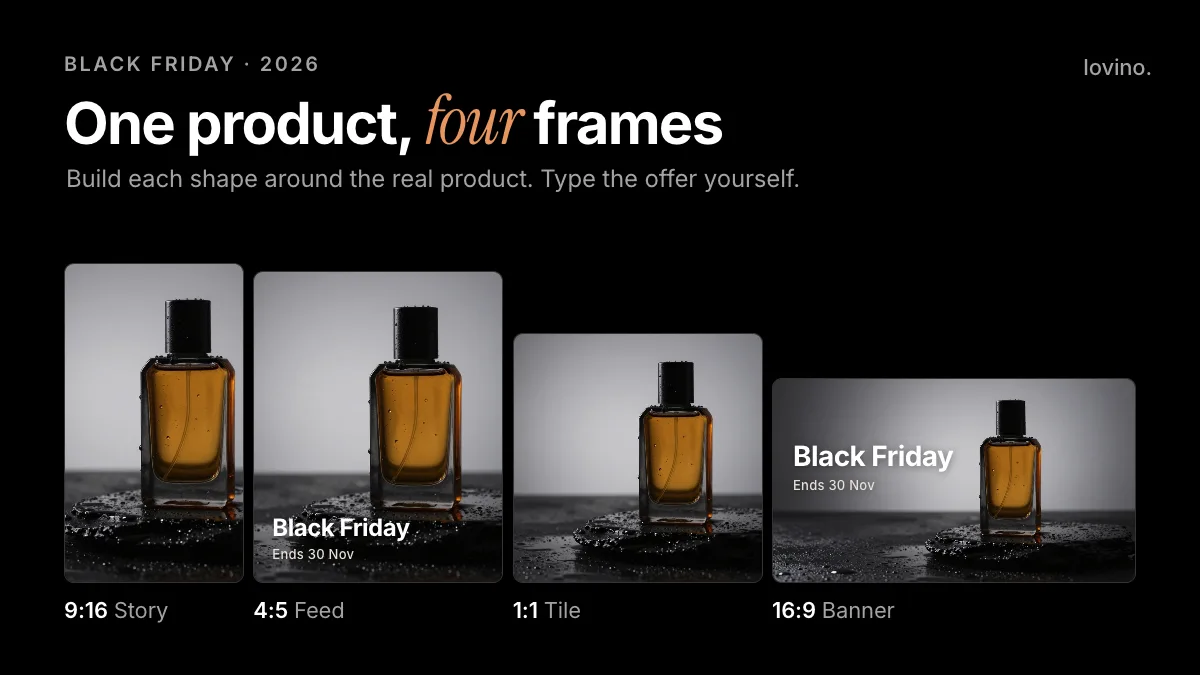
Black Friday product visuals are one real product photo, recomposed for every place the sale will appear. Use AI to build the scene around the product, check that the product still matches your photo, and type every price and date yourself. Do that and one shoot can fill a banner, a carousel and a set of stories. Skip it, and you are rushing a photoshoot in the busiest retail week of the year.
Black Friday is the day after US Thanksgiving, the fourth Thursday of November. In 2026 that is Friday 27 November, and Cyber Monday follows on 30 November. Six weeks is a comfortable runway; three is enough if you keep the set small. This guide is for small brands and sellers who want a clean, honest set of sale visuals without a studio booking.
What do Black Friday product visuals need to include?
Every sale visual does four jobs. It shows the real product, makes the offer clear, states when it ends, and fits the frame it appears in. AI helps with the first and last. You handle the middle two.
| Job | Who does it | Why |
|---|---|---|
| Show the real product | Your photo, with AI changing the scene only | A product that looks different from the ad leads to returns and bad reviews |
| State the offer and end date | You, as typed text | AI lettering can misspell prices and dates |
| Fit the placement | AI, by recomposing in the right ratio | Cropping a wide image into a story wastes the product |
| Look like one campaign | You, by reusing one scene and palette | A repeated look ties the set together |
Which formats and sizes do you need?
Most sales run on four placements. These are common pixel sizes, so confirm them against each platform's own spec before you export.
| Placement | Ratio | Common size | Composition tip |
|---|---|---|---|
| Story or reel cover | 9:16 | 1080 x 1920 | Keep key content away from the top and bottom edges where app buttons sit |
| Carousel or feed post | 4:5 | 1080 x 1350 | Put the product off-centre and leave a column for the offer |
| Square post or product tile | 1:1 | 1080 x 1080 | Centre the product on a clean background |
| Website hero banner | 16:9 | 1920 x 1080 | Product on one side, empty space for copy on the other |
Generate in the ratio you need rather than cropping afterwards. Studio's ratio menu includes 9:16, 4:5, 1:1 and 16:9. For more on picking a shape, see how to choose AI image aspect ratios.
How do you turn one product photo into a Black Friday set?
Start with a sharp photo of one product on a plain background. Then work in this order.
- Place it in a scene. Open AI product photography, upload the photo and pick a scene: white, marble, lifestyle, outdoor, kitchen or wooden. You do not need to cut the product out first. A short note such as "soft morning light" steers the light.
- Or write your own scene. The AI background changer edits from a written instruction. Tell it what to change and, just as important, what to keep.
- Check the product. Put the result next to your original and zoom to 100 percent. Look at the shape, colour, stitching and any printed label.
- Recompose for each placement. The product photo tool follows the shape of your upload, so for other shapes open Studio, add your photo as a reference image and pick 9:16, 4:5, 1:1 or 16:9 in the ratio menu. The AI ad generator also offers square, vertical and wide formats. Reuse one scene description so the set looks like one campaign.
- Add the words last. Type the offer, price and end date in your own design app.
Here is a real before and after. A sneaker photo on a café table (an AI-made demo image) became a clean studio shot with one instruction, made with FLUX Kontext Fast, the model behind the AI background changer. Note the wording: say exactly what to replace, then add "keep the product exactly the same".
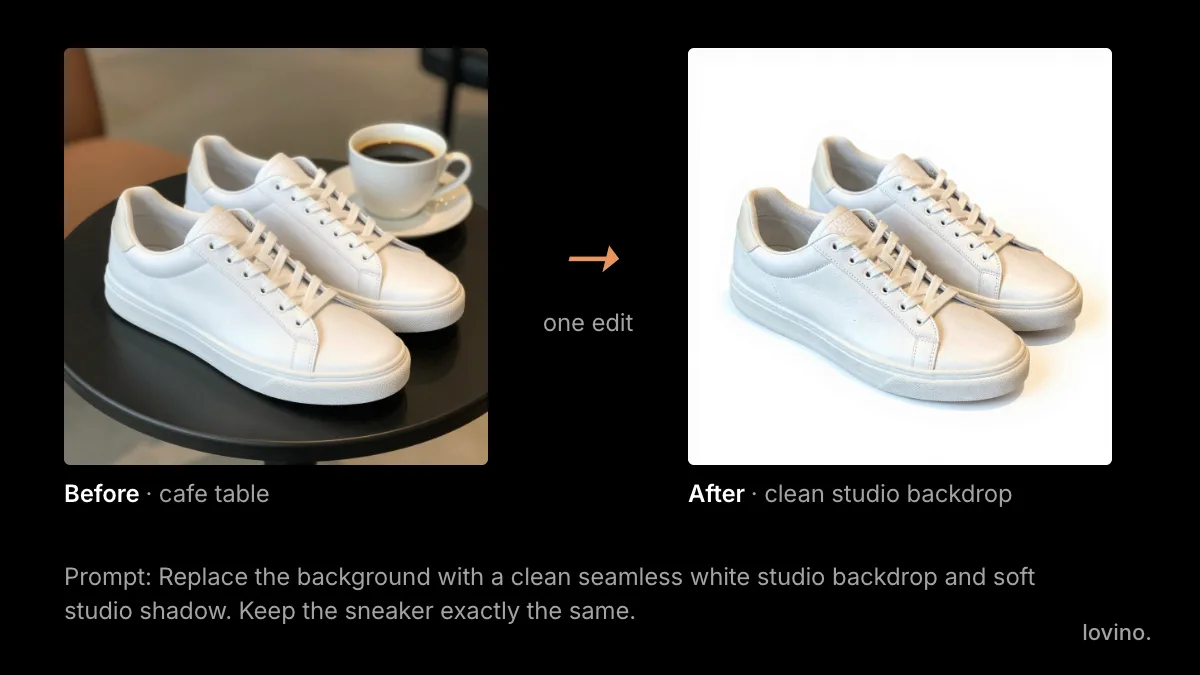
Look closely at that result. The shoe is close to the original, but not identical in every detail. That is why step three exists.
Prefer a faster route? Ad Studio, the AI ad generator, takes one product photo, builds a new scene and writes headline and button text. Ad copy is free and scenes use paid credits. Review the copy before it goes anywhere.
How do you make a Black Friday banner with AI?
Ask the model for a backdrop, not a finished banner. Leave a big empty area and say "no text".
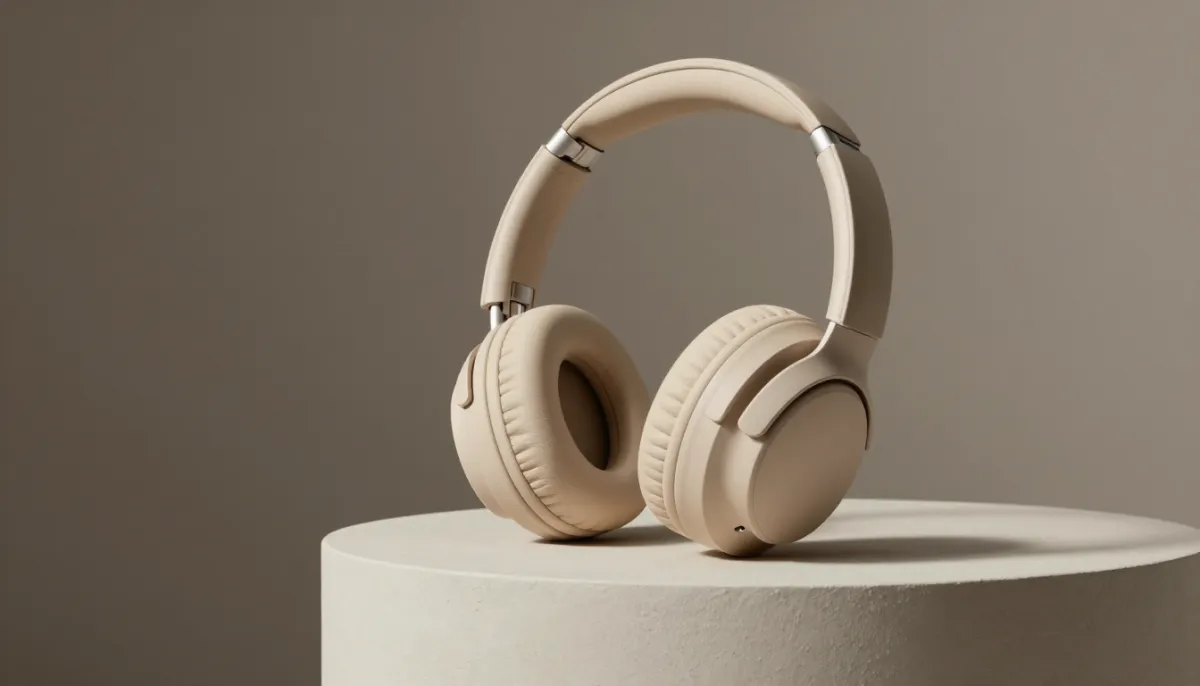
Wide 16:9 banner backdrop, a beige over-ear headphone standing on a plaster plinth,
soft studio light from the left, plain warm grey wall,
large empty space on the left for text, no text, no logos
The picture below, an invented product made with AI, is a shot in that spirit: calm light, a single object, an empty wall on the left. You, or a designer, can drop the headline, price and button into that space.
If you want a bold headline inside the image, the AI poster generator uses models built to render words. Even so, proofread every letter. AI can misspell, and a typo in a price is expensive.
How do you make Black Friday stories and carousels?
Think in sequences, not single images. A carousel is five slides with five jobs.
| Slide | Job | Visual |
|---|---|---|
| 1 | Stop the scroll | Product alone in your best scene, end date typed on top |
| 2 | Show the product | Same scene, tighter crop on the main feature |
| 3 | Show the detail | A close-up from your real photo, upscaled if needed |
| 4 | Show real proof | A real review or a customer photo you have permission to use |
| 5 | State the terms | Plain background, offer, end date, link |
Stories work as three frames: a teaser the week before, the offer on the day, and a last-call frame on the final day. All three can share one scene with a different line of text.
For motion, animate one still into a short clip with image to video. The clip below grew from a still of white sneakers beside a coffee cup. The prompt was: "Slow cinematic push-in on a white sneaker on a cafe table, soft morning light, steam rising from a coffee cup." Video always uses paid credits; the free daily credits cannot be spent on it. See pricing for details.
What should you never fake in a sale visual?
AI should style your product, never rewrite the truth about it. This checklist is the one to run before anything goes live.

- A different product. Models can change shape, colour and printed text, even when told to keep them. If the item in the ad is not the item in the box, expect refunds and bad reviews.
- A made-up "was" price. A "was" price should be one the item really sold at. Rules differ by country. In the US, the FTC's Guides Against Deceptive Pricing warn against comparing with an inflated former price. Check the rules where you sell.
- Fake scarcity. Do not write "only 3 left" unless it is true.
- Invented customers. Do not generate faces or quotes as reviews. Use real ones, with permission.
- Features the product lacks. If the render shows an extra accessory or a light that is not there, regenerate.
- A watermark on a live ad. Free-plan images carry a watermark, and paid plans remove it. Test on free credits, and export finals on a paid plan.
Two more practical notes. Your uploaded photos are processed by third-party AI providers, so do not upload unreleased products you cannot share. And everything you make on Lovino, including on the free plan, comes with commercial rights, so the visuals are yours to use in ads.
Start building the set before the rush
Plan backwards from the sale date. Spend the first week making the scene and checking the product, the second on formats, and keep the last stretch for scheduling and replying to customers. With less time, make one scene and one story set, and skip the rest. Thanksgiving sits the day before Black Friday, and Thanksgiving content ideas shows how to thank customers before you sell to them.
Ready to build? Upload one product photo to AI product photography, pick a scene, and compare the result with the real product. If you want a longer walkthrough of product shots, read AI product photography for ecommerce.
Questions, answered.
What size should Black Friday banners and stories be?
Common sizes are 1080 x 1920 (9:16) for stories, 1080 x 1350 (4:5) for carousel and feed posts, 1080 x 1080 (1:1) for squares and 1920 x 1080 (16:9) for website banners. Confirm each platform's current spec before you export.
Can AI change my product when it makes a new background?
It can. Tools ask the model to keep the product's shape, colour and printed text, but small details can drift. Compare the result with your real photo at 100 percent zoom and regenerate if anything differs.
Should AI write the prices and dates in my Black Friday images?
No. Generate a backdrop with empty space and type the offer, price and end date yourself. AI lettering can misspell, and a wrong number in a sale visual causes real problems.
Can I use AI product photos in paid ads?
Yes. All Lovino users, including free ones, get commercial rights to what they make. Free-plan images carry a watermark that paid plans remove, so export final ad files on a paid plan.
Do I need to remove the background from my product photo first?
Not for the product photography tool. Upload one product on a plain background, pick a scene, and the tool redraws the area around it. A clean, sharp source photo gives the best result.