How to Make a YouTube Short With AI (2026): 6-Step Workflow
Make a YouTube Short with AI in six steps: plan one idea, generate vertical stills, animate them, add sound, and upload with the right AI disclosure.
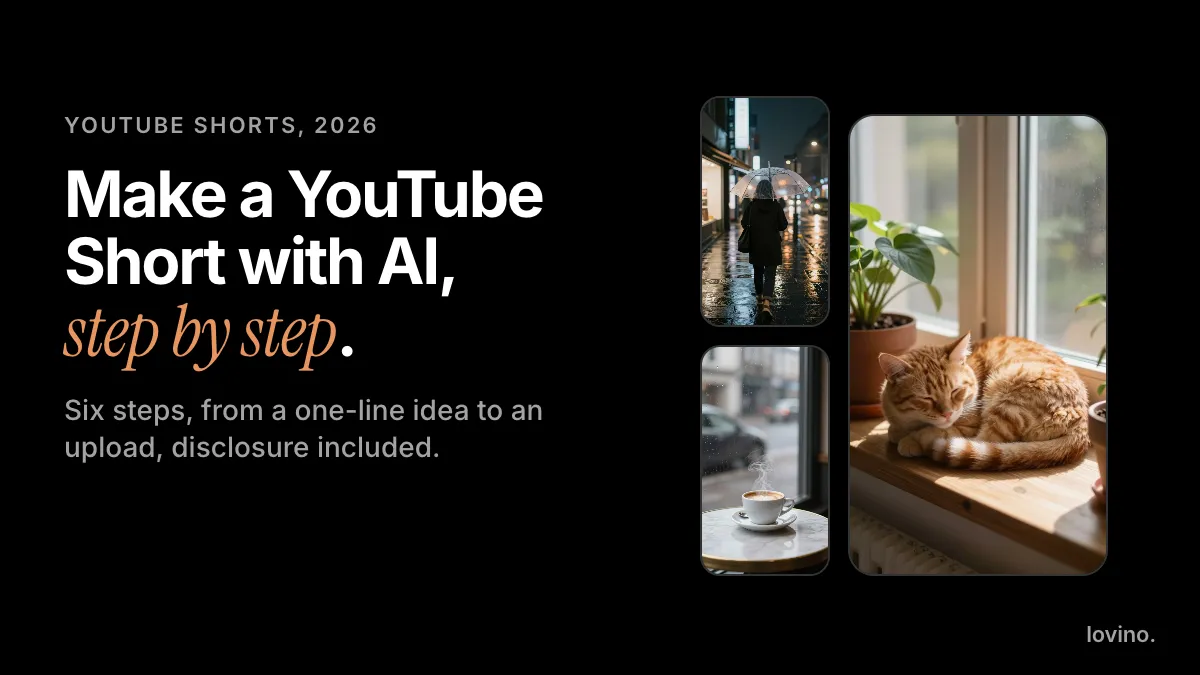
To make a YouTube Short with AI, plan one idea, generate vertical stills, animate each still into a clip, join the clips with sound, add words on screen, and upload with YouTube's AI disclosure switched on when the content looks realistic. A Short can run up to 3 minutes and must be square or vertical.
Lovino covers the stills and the clips; the joining, the sound and the upload happen in YouTube or your own editor. Here is the workflow, one step at a time.
What are the YouTube Shorts specs?
YouTube's help pages give the limits you need:
| Spec | Value |
|---|---|
| Length | Up to 3 minutes |
| Aspect ratio | Square or vertical |
| Upload resolution | Up to 1080p |
| Upload from a computer | YouTube Studio, then Create, then Upload videos |
Vertical 9:16 is the natural choice, because it is what a phone shows full screen.
How do you make a YouTube Short with AI?

Six steps, each with one job. The last one is the step people skip. Here is the kind of Short they add up to: three AI-made stills, each animated into a clip, then trimmed and joined.
| Step | Job | Where it happens |
|---|---|---|
| 1 | Pick one idea | On paper |
| 2 | Make vertical stills | Lovino's AI image generator |
| 3 | Animate each still | Lovino's image to video tool |
| 4 | Join clips and add sound | YouTube's Shorts editor or your own editor |
| 5 | Add the hook and on-screen text | Your editor |
| 6 | Disclose and upload | YouTube Studio |
Step 1: What is the one idea?
Write the Short as one promise a viewer could repeat in a sentence. "Three calm places in twenty seconds" works. "Some nice scenes" does not.
The idea also decides the scene count. For a calm-places Short, three scenes are plenty.
Step 2: How do you make the stills?
Generate one vertical still per scene in the AI image generator. Choose a 9:16 aspect ratio, keep the subject in the middle of the frame, and keep the look consistent from scene to scene. The aspect ratio guide lists the platform sizes.
Images are cheap to retry, so settle each one before you animate it. Signup is required to generate, and the free daily credits cover image generation.
Step 3: How do you animate each still?
Upload each still to the Image to Video AI tool and write one sentence of motion: what the subject does, what moves around it, and one camera move. Lovino returns a clip that follows the shape of your still, so a vertical still gives a vertical clip.
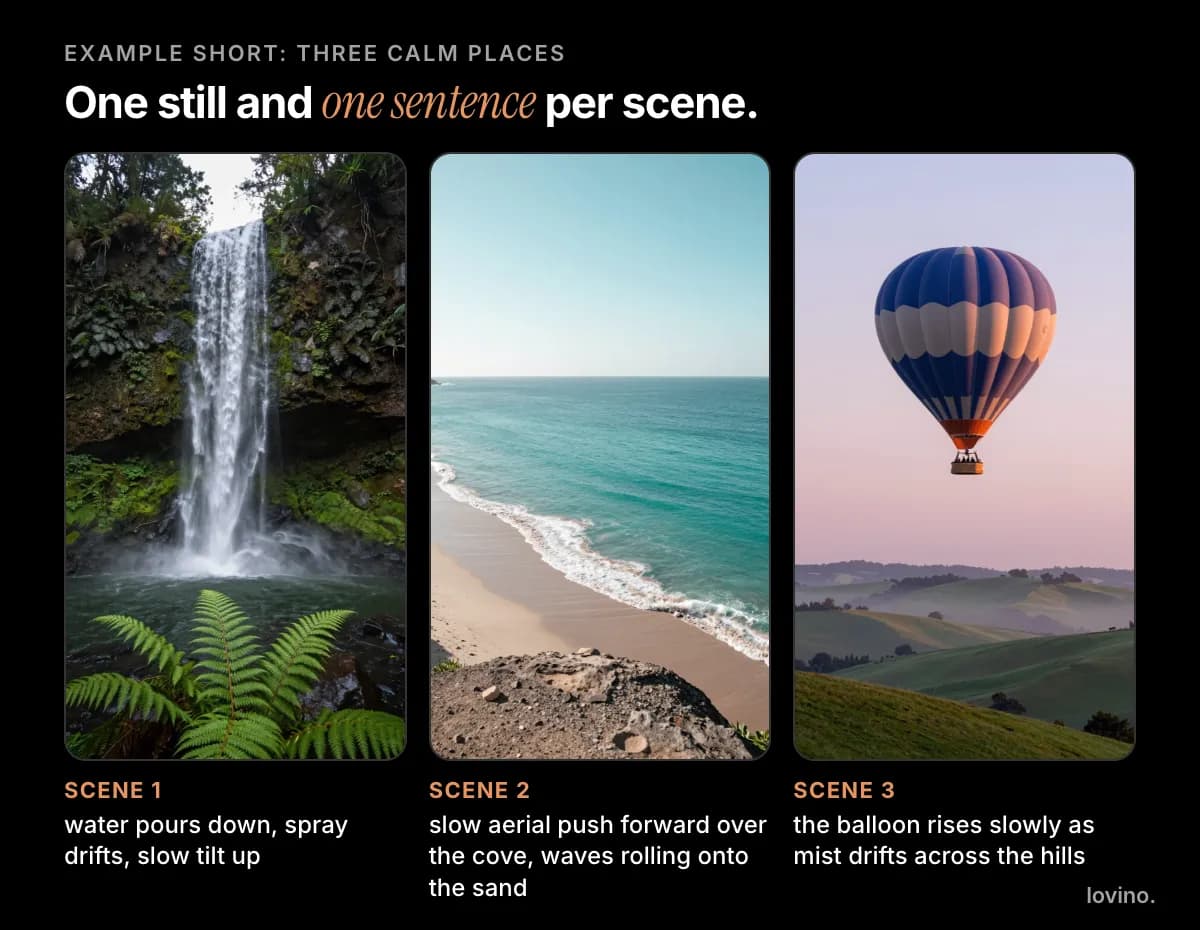
Those are the real prompts behind those three clips, made on Lovino from AI-made stills. For more phrasing, see the AI video prompts guide.
Video is the paid step. It uses paid credits, from a credit pack or a plan, and each clip shows its price before you generate. Clips run from 4 to 15 seconds depending on the model. Current prices are on the pricing page.
Image-to-video is the most controllable route, but you can also start from text. Here is a vertical text-to-video clip made on Lovino.
How long will the Short be? Multiply the scenes by the clip length. The 3-minute ceiling is far away.
| Scenes | Clip length | Short length |
|---|---|---|
| 3 | 5 seconds | 15 seconds |
| 4 | 5 seconds | 20 seconds |
| 6 | 5 seconds | 30 seconds |
| 12 | 5 seconds | 60 seconds |
You will trim each clip, so the finished Short usually runs shorter than the sum.
Step 4: How do you join clips and add sound?
Do this in YouTube's Shorts tools or a video editor you already use. YouTube's help says you can add sounds, text-to-speech and other effects when you create a Short in the app. Cut on movement and keep the best two or three seconds of each clip.
Mind the music. YouTube's help warns that copyright-protected material must be approved for your use, or you could get a Content ID claim. Use music YouTube offers for Shorts, or music you hold the rights to.
Step 5: How do you add the hook and the text?
Open on your strongest motion and put a few words on screen from the first frame. Our Reel hook ideas work for Shorts too, because the first beat is your pitch in either format.
YouTube's app also has a Get feedback button on the details screen, which analyses your video's hook, pacing and more. It is worth a look before you publish.
Step 6: Do I have to disclose AI in a YouTube Short?
Often, yes. YouTube requires creators to disclose when they use AI to meaningfully alter or generate photorealistic content, and you do it with the AI use setting in YouTube Studio. Here is the short version of YouTube's list.
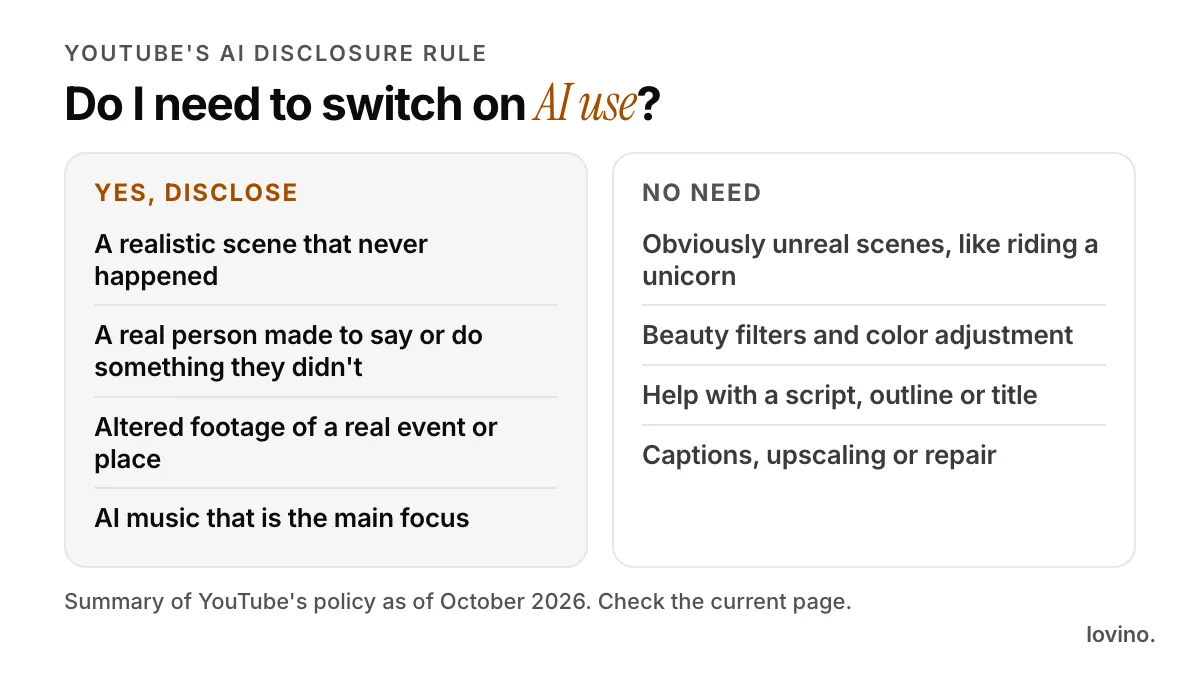
A calm-places Short made of photorealistic AI scenes shows places that were never filmed, and the scenes look real, so switch the setting on. YouTube's examples of content that needs disclosure include AI-generated footage of a real place and AI-generated music. When in doubt, disclose. YouTube's own page is the source of truth, and it can change.
To upload from a computer, sign in to YouTube Studio, click Create, then Upload videos, and pick your file. It must be up to 3 minutes and square or vertical.
What kinds of Shorts work well when you make them with AI?
AI stills and clips suit formats where the picture is the point:
- Calm loops. Rain, waves and clouds with a slow camera move.
- Product reveals. A clean still of a real product, animated with a push-in.
- Restyles. A photo turned into a new look, shown before and after.
- Illustrated explainers. One clear still per point, with your own voice or text.
- Story Shorts with one character. The consistent characters guide covers keeping a face the same across scenes.
What should you never fake in a Short?
A faceless channel is fine. A fake one is not.
- Do not make a real person say or do something they did not. That needs disclosure at the least, and it is risky even then.
- Do not present AI scenes as footage of a real place or event. If the place is real, show it filmed. AI can style and present. It should not stand in for it.
- Do not claim you filmed what you generated. A line in the description is enough.
- Do not skip the disclosure setting when your scenes look realistic.
Also know where your images go. Uploaded images are processed by the third-party AI providers that run the models. Free results carry a watermark and paid results do not, and every result comes with commercial rights.
Make your first Short scene
Start with one still and one sentence. Pick the first scene of your idea, generate it vertical and animate it in the Image to Video AI tool. Three scenes make a Short. Want a voice and a face? The faceless YouTube guide covers that route.
Questions, answered.
Can you make YouTube Shorts with AI?
Yes. Generate vertical stills, animate each one with image-to-video, join the clips with sound in an editor, and upload to YouTube. Disclose AI use in YouTube Studio when the content looks realistic.
How long can a YouTube Short be?
Up to 3 minutes, according to YouTube's help pages. A Short must have a square or vertical aspect ratio, and uploads support up to 1080p.
Do I have to disclose AI in a YouTube Short?
YouTube requires disclosure when you use AI to meaningfully alter or generate photorealistic content, such as a realistic scene that never happened or a real person made to say something they did not. Obviously unreal scenes and minor edits do not need it. Check YouTube's current policy page.
Does AI video on Lovino cost money?
Image generation is covered by the free daily credits, but video uses paid credits, either a credit pack or a plan. The price is shown before you generate, and current prices are on the pricing page.